MacBook Air vs. MacBook Pro: Which One Suits You Best?

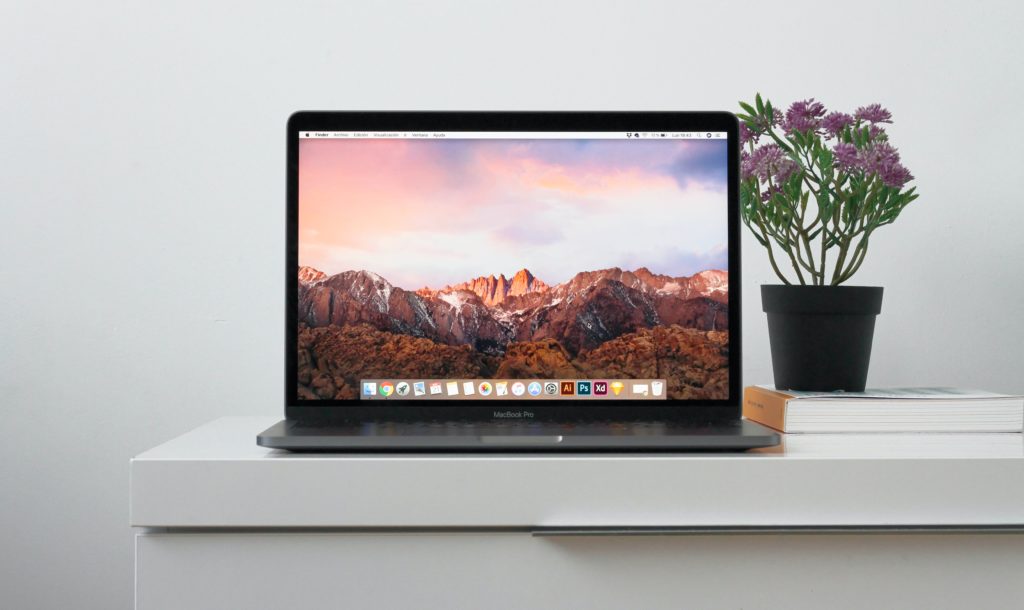
The Apple MacBook lineup offers various choices to meet users’ diverse needs, with the MacBook Air and MacBook Pro sharing popularity. But how do you decide which one best suits you? In this blog post, iFixYouri takes a closer look at the MacBook Air vs MacBook Pro to help you make an informed decision. You may also want to check out our post about Tips to extend your MacBook Lifespan.

MacBook Air vs MacBook Pro
Photo by Rubén Menárguez on Unsplash

Design and Portability

MacBook Air: When it comes to design and portability, the MacBook Air excels. It boasts a thin and lightweight build, making it excellent for users on the move. Its iconic wedge-shaped design, featuring a tapered body, sets it apart as one of the market’s most portable laptops. The MacBook Air is available in various color options and flaunts a sleek, minimalist look that appeals to many users.

MacBook Pro: While the MacBook Pro isn’t as feather-light as the MacBook Air, it remains a relatively portable option. It features a more robust build with a unibody aluminum chassis, ensuring extra durability. The MacBook Pro is available in two sizes: 13-inch and 16-inch. So the Pro offers more screen real estate compared to the MacBook Air.

Verdict: If you prioritize portability and a lightweight design, the MacBook Air wins. However, if you need a studier build and are willing to compromise some portability for performance, go with the MacBook Pro.

Performance

MacBook Air: The MacBook Air is designed for everyday tasks such as web browsing, email, word processing, and multimedia consumption. It runs on Apple’s M1 chip, which delivers impressive performance and energy efficiency. While it easily handles many tasks, it may not be the best choice for applications like video editing or 3D rendering.

MacBook Pro: The MacBook Pro, particularly the 16-inch model, boasts powerhouse performance. It comes equipped with more potent processors, dedicated graphics cards, and additional RAM options. This makes it suitable for professionals and power users who need to tackle resource-intensive tasks such as video editing, programming, and graphic design.

Verdict: If you require top-notch performance for resource-intensive tasks, the MacBook Pro is the better option. However, for everyday use and casual tasks, the MacBook Air’s performance is more than sufficient.

Display

MacBook Air: The MacBook Air boasts a high-resolution Retina display, offering excellent color accuracy and sharpness. It’s excellent for consuming media and working with documents, though the brightness and color depth might not suffice for professional photo or video editing.

MacBook Pro: The MacBook Pro comes with an even more impressive Retina display. It provides higher brightness, superior color accuracy, and sometimes even a wider color gamut. This makes it ideal for professionals who require precise color representation, such as photographers and video editors.

Verdict: If you prioritize an exceptional display, the MacBook Pro’s screen is the superior choice. For general use, the MacBook Air’s display is more than satisfactory.

Battery Life

MacBook Air: The MacBook Air excels in terms of battery life. Thanks to the efficiency of the M1 chip, it can last up to 15 hours on a single charge, making it perfect for all-day use without the need to find an outlet.

MacBook Pro: The MacBook Pro offers good battery life, especially considering its performance capabilities. However, it may not match the MacBook Air’s endurance, particularly during demanding tasks.

Verdict: If you need a laptop that can last all day without charging, the MacBook Air is the winner in the battery life department.

Price

MacBook Air: The MacBook Air is typically more budget-friendly than the MacBook Pro, providing excellent value for users seeking a reliable laptop for everyday tasks.

MacBook Pro: The MacBook Pro, especially the 16-inch model, is on the higher end of the price spectrum. Its performance and features justify the cost, but it isn’t the best choice for those on a budget.

Verdict: If you’re looking for a more affordable option, the MacBook Air is the way to go. The MacBook Pro is a premium choice with a higher price tag but offers top-tier performance and features.

In the MacBook Air vs. MacBook Pro showdown, there isn’t a one-size-fits-all answer. Your choice should depend on your specific needs and priorities. Here’s a quick summary:

  • Choose the MacBook Air if you need a lightweight, portable laptop for everyday tasks and don’t require top-tier performance or a high-end display.
  • Opt for the MacBook Pro if you need a powerful laptop for resource-intensive tasks, such as video editing or professional design work, and can afford the higher price.

Consider your budget, performance requirements, and the type of tasks you’ll be performing to make the best decision for your unique needs. Both MacBook models offer a premium experience. When choosing between MacBook Air vs MacBook Pro, it’s all about finding the one that aligns with your preferences and requirements.

About Our Certifications


Certifications play a pivotal role in the tech and repair industries, serving as a testament to expertise and competence. iFixYouri knows from experience that staying up-to-date with the latest advancements and best practices is crucial. Our many certifications validate our organization’s skills, knowledge, and ability to handle complex technologies and repair tasks.

With the ever-increasing reliance on technology in our lives, having certifications in the tech and repair industries is a valuable investment, ensuring that professionals can meet the demands of an ever-changing landscape and deliver top-notch service and support.

R2v3 Certification

The R2v3 certification is the most recent update requiring that we recycle and dispose of all electronic equipment following the highest standards for environmental protection, as well as facility and workforce safety. iFixYouri is the only Palm Beach County repair company with this certification.

ISO 14001

The ISO 14001 certification focuses on environmental management systems, which allows us to have full visibility of our environmental impact.

ISO 45001

The ISO 45001 certification focuses on the occupational health and safety of our team.

ISO 9001

The ISO 9001 certification sets standards for quality management and is key to customer satisfaction and organizational success.

Apple Independent Repair Program

iFixYouri, through Apple’s IRP has access to genuine Apple parts, tools, training, service guides, diagnostics, and resources to perform a variety of out-of-warranty repairs for iPhone and Mac, such as iPhone display and battery replacements, and Mac logic board and video card replacements.

DELL Tech Direct

iFixYouri can get authorized support, order Dell replacement parts, check warranty status and initiate in-warranty repair tickets — all from one place via Dell’s TechDirect Program.

WISE

iFixYouri is WISE Certified. WISE stands for Wireless Industry Service Excellence. WISE is the industry-recognized standard for consumers, retailers, and technicians championing excellence in device repair globally. With our WISE certification, you can rest assured your repair will be handled to the highest standard.

Unresponsive Computers: a Complete Troubleshooting Guide

In our modern, technology-driven world, computers are essential for work, communication, and entertainment. Unresponsive computers can become a source of frustration and anxiety. However, there’s no need to worry. In this blog post, we’ll walk you through a series of troubleshooting steps to help you diagnose and potentially fix the issue. You may also want to check out our post about Simple Computer Tweaks.

Unresponsive computers
Photo by Elisa Ventur on Unsplash

Start with the Basics

Before delving into complex solutions, begin with the fundamentals:
a. Ensure the power source functions: Make sure your computer is connected to a working power outlet. Verify the outlet’s functionality by testing it with another device.
b. Examine the power cable and connections: Inspect the power cable for visible damage or loose connections. Sometimes, a loose cable can lead to power issues.
c. Check the power button: Confirm that the power button operates correctly. Occasionally, power buttons can become stuck or unresponsive.

For Laptop Users

If you’re dealing with a laptop, the issue might be related to the battery:
a. Plug it in. If your laptop battery is completely drained, it might not turn on. Plug it into the charger and wait a few minutes before attempting to power it up.
b. Check the battery status LED: Most laptops feature an LED that indicates the battery status. If it’s blinking, consult your laptop’s manual to interpret the code.
c. Remove the battery: In some instances, removing the laptop’s battery and holding the power button down for 10-15 seconds can reset the system and help it start.

Troubleshooting the Display

Sometimes, the computer may be turning on, but you can’t see anything on the screen. Here’s what you can do:
a. Check the monitor: Ensure the monitor is powered on, correctly connected to the computer, and set to the correct input source.
b. Adjust brightness and contrast: Modify the monitor’s brightness and contrast settings to ensure the display isn’t too dim.
c. Try an external monitor: Connect your computer to an external monitor to determine if the issue is with the built-in screen or the computer itself.

Exploring Safe Mode and Recovery

If you still have an unresponsive computer after the above tips, try these advanced troubleshooting steps:
a. Boot in Safe Mode: For Windows users, attempt to boot your computer in Safe Mode. This mode only loads essential drivers, and if your computer starts, it may be a software issue causing the problem.
b. Boot from a recovery USB/CD: If you possess a recovery drive for your operating system, you can attempt to boot from it to access repair options.

Addressing Hardware Issues

If none of the previous steps revive your unresponsive computer, the issue may be hardware-related. In this case, it’s advisable to contact professional technicians at iFixYouri or the manufacturer for assistance.
a. RAM and motherboard: Problems with your computer’s RAM or motherboard can be difficult to diagnose and resolve independently.
b. Power supply unit (PSU): A failing PSU can also result in power issues, potentially necessitating replacement.
c. Overheating: Excessive heat can lead to your computer shutting down unexpectedly. Ensure the cooling system operates correctly.

Facing unresponsive computers can be a daunting experience, but with these troubleshooting steps and a systematic approach, you can potentially identify and resolve the issue. If you’re uncomfortable with these steps or the problem persists, seek professional help.

To prevent future problems, remember that regular maintenance and backups are essential for keeping your computer in good working order. This can help you avoid unresponsive computers and keep your productivity and enjoyment high. For help with computer-related issues, please bring your computer to iFixYouri.

Should You Repair an Older Smartphone or Tablet?

In today’s fast-paced technological world, new smartphone and tablet models hit the market every year, boasting upgraded features and enticing marketing strategies. As a result, many of us wonder whether we should repair an older smartphone and tablet. is worthwhile when newer options are readily available.

In this blog post, we’ll explore the factors that can help you decide whether it’s worth repairing an older device or if it’s time to upgrade. You may also want to check out our post about The Benefits of Profession iPhone Repa

Repair an older smartphone
Photo by Daniel Romero on Unsplash

Cost-Effective or Costly Repair?

The first factor to consider when contemplating repairs on an older device is the cost. While repairing a broken screen or resolving a battery issue can be relatively affordable, more complex problems can come with a hefty price tag. Furthermore, as devices age, finding replacement parts can become increasingly challenging and expensive. Therefore, before making a decision, it’s essential to get a repair estimate and compare it to the cost of a new device with similar specifications.

Performance and Software Updates

Another critical aspect to weigh is the performance of your older smartphone or tablet. If your device operates painfully slowly, struggles with multitasking, or lacks the latest software updates, it might be time for an upgrade. Newer devices tend to come equipped with better processors, increased RAM, and updated software, resulting in a smoother and more secure user experience.

Features and Functionality

Consider whether your older device still meets your needs. If you find yourself requiring features that your current device lacks, such as an improved camera, 5G capabilities, or more storage, it may be worth exploring a newer model. However, if your current device satisfies your requirements, repairing it may be a more sensible choice.

Environmental Impact

The environmental impact of replacing your older smartphone or tablet is a growing concern. The electronics industry contributes significantly to e-waste, so retaining your device’s functionality for as long as possible can help reduce your ecological footprint. When you repair an older smartphone, it is a more sustainable option.

Sentimental Value

Sometimes, the decision to repair or replace isn’t solely based on practicality. Older devices may hold sentimental value. Perhaps your current device was a gift, or it has captured important moments throughout the years. In such cases, repairing the device to keep it functional may be worth it.

Future-Proofing

Consider your long-term plans when deciding whether to repair or replace your device. If you foresee needing the latest technology for work or personal reasons, investing in a new device that can withstand the next few years of advancements might be a wise choice.

In conclusion, the decision to repair or replace an older smartphone or tablet depends on various factors. Assess the cost of repair, the device’s performance, your specific needs, and the environmental impact. Also, take into account any sentimental value or future plans that could influence your decision.

In some cases, repairing an older device may be a cost-effective and eco-friendly choice, while in others, upgrading to a newer model may offer better performance and functionality. The key is to make an informed decision that aligns with your unique circumstances and priorities.

If you do decide to repair your device, please visit iFixYouri. We not only perform repairs but we also sell certified pre-owned devices if you should decide to replace yours.

How to Identify Signs of Malware on Your Smartphone

The smartphone has become an indispensable tool for communication, productivity, and entertainment. Although these devices are convenient and powerful, cybercriminals also target them because of their power and convenience. Malware, which is short for malicious software, can infect your smartphone and cause a range of problems, from data theft to performance issues.

To protect your device and personal information, it’s crucial to learn how to spot signs of malware on your smartphone. In this blog post, we’ll guide you through the common indicators that suggest your smartphone might be infected. If your issue is serious, please visit us at iFixYouri.

You may also want to check out our post about Simple Computer Tips to Enhance Your Speed and Performance.

Malware on your Smartphone
Photo by Growtika on Unsplash

Common Indicators of Smartphone Malware

Unexplained Battery Drain: 

If your smartphone’s battery life suddenly plummets, it could be an indication of malware. Malicious software can run in the background, consuming battery power without your knowledge.

Sluggish Performance: 

Malware can significantly slow down your smartphone. Consequently, if you notice that your device takes more time to open apps, respond to touch commands, or load web pages, it might be time to investigate.

Unwanted Pop-Up Ads: 

Be wary of pop-up ads that appear on your smartphone, particularly when you’re not using a specific app or browsing the web. These ads may lead to malicious websites or fraudulent offers.

Increased Data Usage: 

Malware can run data-intensive tasks in the background, leading to unusually high data usage. If your data plan usage has spiked without any obvious reason, malware could be to blame.

Mysterious Apps: 

Regularly scrutinize your smartphone for unfamiliar apps or apps you don’t remember installing. Some malware disguises itself as legitimate applications, so exercise caution regarding what you download and routinely review your app list.

Overheating: 

If your smartphone becomes unusually hot during regular use, it might indicate a malware infection. Malicious software can strain your device’s resources, causing it to heat up.

Mysterious Charges: 

Stay vigilant about your phone bill. Malware can send premium-rate SMS messages or make unauthorized calls, resulting in unexpected charges.

Privacy Invasion:

Malware can access your personal data, such as contacts, messages, and photos. If you notice suspicious or unauthorized access, it’s a strong indication of a security breach.

Frequent Crashes:

Frequent app crashes, system crashes, or unresponsiveness can be attributed to malware interfering with your device’s normal operations.

Changes in Settings: 

Malware can alter your smartphone’s settings, such as changing your homepage or default search engine. Be mindful of any unauthorized changes.

Increased Heat and Power Usage: 

If your smartphone feels hot even when you’re not using it, and its battery is draining quickly, it could be a sign of malware running in the background.

Follow These Tips If You Suspect Malware On Your Smartphone

  1. Utilize a Mobile Security App: Install a reputable mobile security app that can scan and remove malware from your device. Ensure it’s kept up to date.
  2. Keep Your Smartphone Updated: Ensure your device’s operating system and apps are kept updated to patch any security vulnerabilities.
  3. Review App Permissions: Regularly review the permissions granted to apps and revoke any that seem unnecessary for their function.
  4. Uninstall Suspicious Apps: If you identify any suspicious or unfamiliar apps, uninstall them immediately.
  5. Change Your Passwords: Change your device passcode and consider changing your passwords for sensitive accounts, such as email and banking, in case they were compromised.
  6. Back-Up Your Data: Regularly back up your data to a secure location to ensure you don’t lose important information in the event of a malware infection.
  7. Contact iFixYouri: If the issue persists or is severe, reach out to us at iFixYouri for assistance.

Malware on your smartphone can pose a significant threat to your device and your personal information. Being vigilant, practicing good digital hygiene, and knowing how to spot the signs of malware are essential for keeping your device and data safe. Stay informed and take action promptly if you suspect any suspicious activity on your smartphone. Your digital security is in your hands.

Exploring the Distinction Between LCD and OLED Screens

Screens have become an integral part of our daily lives. From the smartphones we carry to the televisions we watch and the monitors we use for work, choosing the right screen technology is crucial. Two of the most popular options are LCD (Liquid Crystal Display) and OLED (Organic Light-Emitting Diode) screens.

To make an informed decision when purchasing devices that use these technologies, it’s vital to understand the differences between them. In this blog post, we will delve into the key distinctions between LCD and OLED screens and provide you with essential insights to help you make an educated choice. You may also want to visit our post about Why You Shouldn’t Ignore a Cracked Smartphone Screen.

OLED screen
Photo by William Hook on Unsplash

LCD Screens

LCDs have been a staple in the world of displays for a considerable period. They operate by manipulating light with liquid crystals. Here’s how they function:

Firstly, the earlier LCD screens rely on a backlight source to illuminate the pixels. This means that there is a constant source of light behind the display, which can result in some limitations in terms of contrast and energy efficiency.

Secondly, the image quality of an LCD screen depends on the quality of the backlighting and the liquid crystals’ ability to control the passage of light. While LCDs can produce vibrant colors, they often struggle to achieve deep blacks, which can affect contrast levels.

Lastly, LCDs are known for their relatively lower energy consumption compared to older display technologies like CRTs. However, they are less efficient than OLEDs because the backlight is always on, even when displaying dark or black content.

OLED Screens

On the other hand, OLEDs are a relatively newer technology that has gained immense popularity in recent years. They function differently from LCDs and offer several advantages:

The primary distinction of OLED screens is that each pixel emits its own light, which results in perfect blacks and infinite contrast levels.

OLED screens are known for their exceptional color accuracy, vibrancy, and superior image quality due to the precise control of each pixel’s brightness.

In terms of energy efficiency, OLEDs surpass LCDs because they only consume power when pixels are lit. This means that when displaying dark or black content, OLED screens are significantly more energy-efficient.

OLED vs LED: Durability and Lifespan

When considering the durability and lifespan of these technologies:

Of the two technologies, LCDs generally have a longer lifespan, as the organic materials in OLED screens can degrade over time. However, recent advancements in OLED technology have significantly improved their lifespan and reduced the risk of burn-in, a problem where static images can leave a permanent mark on the screen.

LCDs are more resistant to water damage and screen burn-in, making them a better choice for specific applications where screen endurance is crucial.

Which iPhones Have OLED Screens?

Most modern flagship smartphones now feature OLED screens.

  • iPhone X 
  • XS series iPhones
  • iPhone 11 Pro 
  • iPhone 11 Pro Max 
  • 12 series iPhones

Samsung OLED Technology

What is the Difference Between OLED and AMOLED?

AMOLED is a marketing term used by Samsung. It stands for Active Matrix Organic Light Emitting Diode. 

What Is Super AMOLED?

Samsung defines “Super AMOLED” as an AMOLED display with built-in touch functionality. This integration means that the digitizer, responsible for translating touch into input, is merged into the display stack.

Both technologies offer the ability for devices to integrate light and touch sensors, allowing users to interact with the screen seamlessly. However, the distinguishing factor lies in the implementation of the touch detection layer. In Super-AMOLED displays, this layer, known as the digitizer or capacitive touchscreen layer, is directly integrated into the screen itself, while in AMOLED displays, it remains a distinct layer positioned atop the screen.

The choice between LCD and OLED screens depends on your specific needs and preferences. If you prioritize superior image quality, deep blacks, and vibrant colors, opt for OLED screens. They particularly excel in applications such as smartphones, high-end TVs, and computer monitors. Conversely, if you require a more durable and longer-lasting screen with decent image quality, stick with LCDs, a dependable choice.

As technology continually advances, these two screen technologies may exhibit less pronounced differences, with new innovations on the horizon. To make informed decisions when acquiring devices reliant on these display technologies, you must comprehend the distinctions between LCD and OLED screens.

Visit iFixYouri for smartphone screen repair. We have been doing smartphone screen replacements since 2010 and are part of the Apple Independent Repair Program.

The Impact of Software Updates on Device Performance

In our fast-paced digital world, we’ve all come to rely on software updates as a routine part of our daily lives. Whether it’s your smartphone, laptop, or any other electronic device, regular software updates play a vital role in enhancing security, improving functionality, and fixing bugs. However, have you ever wondered about the influence of these updates on your device’s performance? In this blog post, we will delve into the fascinating world of software updates and explore how they can influence your device’s performance. You may also want to check out our blog post about learning when your computer could benefit from hardware upgrades.

Software Upgrades to the Operating System
Photo by Clint Patterson on Unsplash

Enhanced Performance

One of the primary reasons software updates exist is to boost device performance. Developers work tirelessly to optimize their software, making it run more efficiently and smoothly. This optimization translates into faster loading times, improved battery life, and an overall better user experience.

For instance, operating system updates often include performance optimizations that leverage newer hardware capabilities. Consequently, your device can run faster and handle more demanding tasks following a software update.

Software Updates & Bug Fixes

Another significant aspect of software updates is their role in fixing bugs and addressing software vulnerabilities. Bugs can cause your device to crash, freeze, or behave unpredictably. By regularly updating your software, you ensure that these issues are addressed promptly, leading to a more stable and reliable device.

Security Enhancements

The digital landscape is fraught with security threats, and software updates play a pivotal role in keeping your device secure. Developers continuously identify and patch security vulnerabilities in their software to safeguard your data and privacy. Neglecting software updates can leave your device vulnerable to cyberattacks and data breaches.

New Features and Functionality

While software updates often bring new features and functionality to your devices, these additions can also affect performance. New features may require additional system resources, potentially leading to increased resource usage and decreased device performance. Nonetheless, the trade-off is generally worthwhile, as you gain access to new capabilities and improved usability.

Compatibility Concerns

As software updates roll out, older devices may struggle to keep up. Newer software versions might be designed with more advanced hardware in mind, making them less compatible with older devices. While this can lead to performance issues, it’s a natural consequence of technological advancement. Over time, older devices may become less capable of running the latest software efficiently.

User Experience

Ultimately, the impact of updating your software on device performance is often tied to the user experience. Some users may notice significant improvements, while others might encounter minor inconveniences. It’s essential to remember that not all updates are created equal. Some updates may focus on bug fixes and performance improvements, while others may introduce significant changes.

In the ever-evolving world of technology, updates serve as a double-edged sword. On one hand, they bring enhancements, security, and exciting new features. On the other hand, they can occasionally lead to performance issues, especially on older devices. Nevertheless, the overall consensus is that maintaining up-to-date software is crucial for the longevity and security of your devices.

To ensure the best possible experience, it’s a good practice to regularly update your devices and keep an eye on any performance changes. If you find that an update negatively impacts your device’s performance, consider seeking assistance from the manufacturer or exploring alternative solutions. In the end, a well-maintained and up-to-date device is more likely to deliver a reliable and enjoyable user experience. Visit iFixYouri for any software or hardware-related issues.

Why You Shouldn’t Ignore a Cracked Phone Screen

Our smartphones have become an extension of ourselves. We rely on them for communication, entertainment, productivity, and even as personal assistants. However, despite their importance, many of us neglect the physical condition of our phones, especially when it comes to cracked screens. In this blog post, we’ll explore why you shouldn’t ignore a cracked phone screen, for not only aesthetic reasons but also the potential risks and consequences. You may also want to check out our post about common types of smartphone screen damage and how to avoid them.

Don't ignore a cracked phone screen
Photo by Greg Rosenke on Unsplash

Aesthetic Reasons

Let’s start with the most apparent reason: aesthetics. A cracked phone screen mars its appearance, and it can be a constant source of annoyance. Your phone reflects your personality and style, and a shattered screen can diminish its visual appeal. Neglecting the cracks might seem like a minor issue, but it can lead to a perception of carelessness and neglect.

Safety Concerns

Despite its superficial appearance, a cracked screen can pose safety risks. Sharp edges resulting from the cracks can cut your fingers, making phone usage uncomfortable. Moreover, if the cracks are extensive, tiny glass shards might start falling out, creating potential hazards for both you and those around you.

Compromised Touch Sensitivity

Cracks on your phone’s screen can interfere with its touch sensitivity. You may find that certain areas of your screen become less responsive or entirely unresponsive, thereby causing frustration when using essential apps and features. Consequently, this can significantly hinder your productivity and overall smartphone experience.

Reduced Water Resistance

Modern smartphones often boast water resistance ratings, which become compromised when the screen is cracked. Water can seep into the phone through the cracks, potentially damaging internal components and causing long-term issues. As a result, your phone may no longer be suitable for use in wet conditions, such as during rain or near a pool.

Escalating Smartphone Damage

Ignoring a cracked phone screen can lead to more significant problems over time. What begins as a minor crack can spread, causing further damage to the screen and potentially affecting the functionality of your device. In some cases, a cracked screen can lead to a complete screen failure, necessitating costly repairs or a replacement.

Impact on Phone Resale Value

If you ever plan to sell or trade-in your smartphone, a cracked screen can significantly reduce its resale value. Potential buyers may hesitate to purchase a phone with a damaged screen, even if the rest of the device is in perfect condition. Repairing the screen before selling can help you secure a better deal. However, through our buyback program Tech Reboot, we do usually offer cash for broken devices.

Loss of Phone Warranty Coverage

Many smartphones come with warranties that cover manufacturing defects and other issues. However, manufacturers usually consider a cracked screen as accidental damage, making it ineligible for warranty coverage. Failing to address the issue promptly could result in the loss of the opportunity to have it repaired or replaced for free or at a reduced cost.

Hopefully, you’ve learned why you shouldn’t ignore a cracked phone screen. Beyond the aesthetics, there are safety concerns, compromised functionality, and potential long-term damage to consider. Addressing a cracked screen promptly not only improves the usability and safety of your device but also helps maintain its value and functionality. So, the next time you see a crack on your smartphone’s screen, don’t delay – take action to ensure your device continues to serve you well – iFixYouri repairs all makes and models of smartphone.

Smartphone, Tablet and Computer Repairs and News