Google Maps Upgrades for Android

google-maps-android

For those frustrated with the new Maps app included with iOS 6, here’s news about the old Google Maps app you were used to using.  Google has an upcoming upgrade on the horizon for its mapping service for its mobile devices.

Public Transportation

The upgrade includes the listing of options for public transportation in approximately 500 cities across the globe. This takes in departure times and suggested routes for in excess of 1 million international stations, which is roughly a 50 percent increase over a year ago. Google will even supply indoor directions as a means of assisting some riders in navigating the system.

To get a competitive edge, only devices that use Google’s Android operating software will have access to this initial offer. Devices from the following models will be able to access this upgrade:

  • The Motorola Mobility Division of Google
  • Sony Corp.
  • HTC Corp.
  • Samsung Electronics Co.

Apple’s Role in the Changes

iphone-maps-app

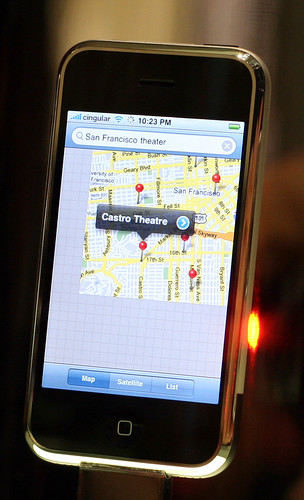
These changes surface at the same time as Apple Inc. commits to replacing Google Maps’ position as the foremost navigation service on the iPad and the iPhone. Apple created its very own mapping service for its mobile devices, although it has arrived to a chorus of disappointment due to bugs and a lack of features.

The Effect on Google

This snub from Apple signifies a major blow to Google, which is set to lose revenue from mobile advertising as well as valuable insights about the whereabouts of individuals if iPhone and iPad users embrace this mapping service from Apple.

Response from Google Inc.

Google is of the belief that it can remain one step ahead of Apple as it relates to mobile mapping on Google maps by including features like the expanded directions for public transportation.

This may encourage iPhone users to make the switch to Android devices, or perhaps switch back.  If you have an Android device that is no longer working properly, now might be the time to get it fixed (by the iFixYouri team) to take advantage of Google’s new app features.

The RIM Tablet: A BlackBerry PlayBook Review

blackberry-playbook-ifixyouri
The Blackberry PlayBook has finally come of age. After gaining average reviews and failing to attract iPad-like customer excitement during its launch, a huge price drop and a profoundly revised OS seems to have worked. The PlayBook has a graceful and beautiful interface that is so simple to use that it actually rivals those of Android’s Asus Eee Pad Transformer Prime and Apple’s iPad2 in this front.

The current price of BlackBerry PlayBook is $199 for 16GB, $249 for 32GB and $299 for 64GB. This is relatively lower compared to the 8GB Amazon Kindle Fire that goes for $199. Arguably, the Kindle Fire is a better media machine with its online-based ecosystem of music, books and movies. Apple’s third generation iPad gives the PlayBook a run for its money with its glut of compelling apps. The PlayBook on the other hand has a dearth of the same.

User Interface, Hardware and Design

The BlackBerry gadget measures 5.1×7.6×0.4 inches and weighs 14.4 ounces. Its front panel consists of black glass while the back panel is soft and tapered. The Playbook’s 1,024-by-600-pixel display is more vibrant and brighter when compared to the Kindle Display.

Hardware

The device lacks a home button. However, it more than makes it up for this by allowing users to employ an easy sweeping motion from the bezel to the display center. At the top edge of the PlayBook, there is a standard 3.5mm headphone jack, volume rocker and power button. It is also equipped with an accelerometer and a 6-axis internal gyroscope.

The device has a built-in internet-tethering feature that enables users to use the gadget’s signal as its hotspot via Bluetooth. Users do not pay extra charges for this feature. As a result, the Wi-Fi only PlayBook is an excellent deal for users.

Ports

The bottom edge has a micro USB connector, HDMI output and a port for magnetic charging similar to the one found on the Apple MacBook Pro. It is compatible with the optional RIM’s dock accessory although it only comes with a micro USB cable and charger as standards.

Graphical Interface

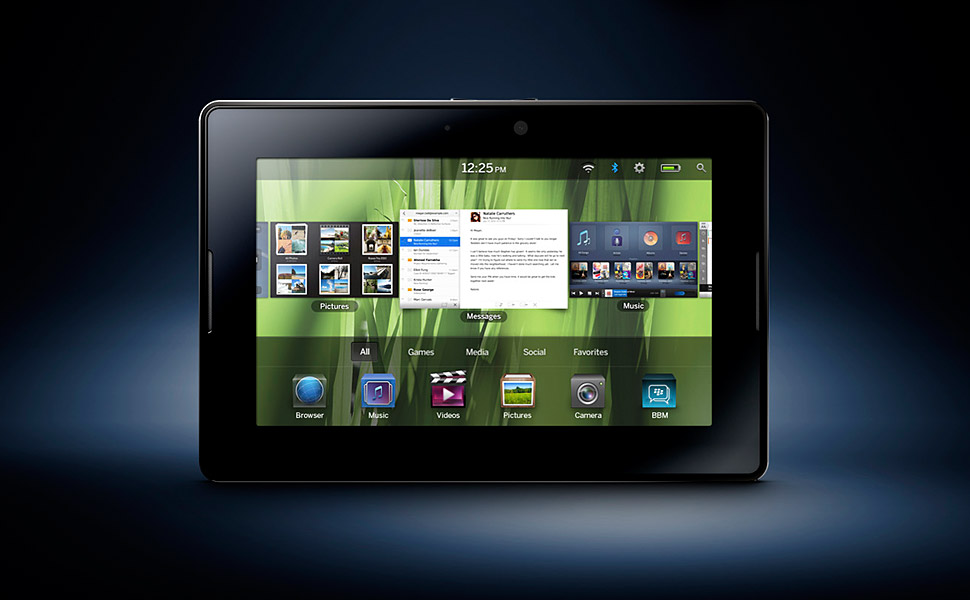
The graphics of the BlackBerry PlayBook are colorful and sharp. So is its overall layout. Despite having fewer apps when compared to its competitors, the existing apps are easy to launch and you get to see background activities without much hustle. At the bottom of the interface, a dock holds five icons, which displays more icons when expanded upwards.

Tech Specs

The device has more than enough hardware power to power its apps. The gadget boasts of a dual-core TI OMAP4430 CPU, PowerVR SGX540 for graphics and 1GHz ARM Cortex-A9 chip that comes with a dual-channel memory controller.

Browser & Apps

Finally, the BlackBerry PlayBook lays claim to a magnificent web browser capable of fast performance, intuitive interface and a full support for Flash 10.1. Its PlayBook OS 2.0 comes with the all-important native email, calendar support and contacts.

Conclusion

The BlackBerry PlayBook is a practical tablet computer and reasonably priced compared to other similar gadgets. However, I’ve heard reports that many PlayBooks are malfunctioning. This isn’t a problem considering they can be fixed by BlackBerry PlayBook repair experts iFixYouri, but the manufacturer still has some work to do before the gadget can claim the bragging rights in the tablet computer space.

The Absolute Best Apps for iPads with a Retina Display

With the advent of the retina display, iPad owners want to download apps that offer the sharpest graphics ever. Playing with brilliant high resolution apps is the only way to truly experience the joys of the retina display. However, with thousands of apps available, the task of choosing the best one is almost impossible. If you have been finding it difficult to choose such an app,  read on for the best retina display apps for iPad, and start enjoying out-of-this-world graphics.

Star Walk for iPad

If you love interactive astronomy, this app should definitely be on your download list. True to its name, it lets users explore the stars in the sky. All one has to do is point his or her iPad device upwards towards the sky. When stargazing becomes a chore rather than a joyous pastime, revert to the planet data and moon phases. The beauty of this app, which makes use of retina display, is the ability to use night mode as well. As such, both day and night modes produce sharp images.

Sky Gamblers: Air Supremacy

For gamers, perhaps nothing gets their competitive juices flowing like good graphics. The Sky Gamblers app offers this and much more. You will not only be able to gawk at the depth of field but also enjoy amazing fluidity. To give you an idea of the graphics depth, the app can display 50 battle planes on screen comfortably.

Evernote

As one of the most popular iPad apps, Evernote does not disappoint when it comes to making full use of retina display graphics. The ultra-high-quality graphics will render your musings perfectly. The slick experience extends across different platforms. This means that you can start scribbling while at the office and continue on your way home.

Infinity Blade II

Game developers know that graphics alone can sink or boost the fortunes of an iPad app. This sequel to the smash-hit Infinity Blade certainly delivers on the graphics front. The resolution renders the stunning landscapes and clouds with such finesse rarely seen in the gaming world. Add to this mix easy game control and you have an app that every iPad owner should have.

Solar Walk

For lovers of 3D models, this solar system iPad app is perhaps the perfect choice. With the help of a set of cyan and red glasses, you will be flying around the universe in no time. Whether you are a novice or an experienced astronomer, Solar Walk provides tons of information using iPad’s retina display.

iPhoto

ipad-retina-iphoto

After taking photographs, you need an iPad app that boasts of retina display qualities for viewing. The iPhoto app from Apple does not disappoint. Everything that you have ever wanted in a photo editing app is available. This includes multi-touch editing, cropping, saturation, as well as exposure. There is no doubt that this app will make both your photo sharing and viewing an enjoyable experience.

StockTouch

When you have to follow stock market movements, you require an app that delivers clear information. The StockTouch app delivers this information using the power of iPad’s retina display. Add intuitive navigation and you have an app for the most demanding trader.

The Early Edition

ipad-retina-the-early-edition

Reading news can be a joy (on a retina display app) or an eye squinting affair (on a news app that does not make good use of this technology). The Early Edition app optimizes the iPad retina display to resolve this problem, and make reading news both easy and enjoyable.

If you have never had the chance to experience iPad’s retina display, the apps discussed above are very likely to totally change your entire iPad experience. Together with iPad’s quad core graphics engine, your daily gaming, note-taking, or browsing will never be the same again. By taking advantage of the iPad’s 2048 by 1536 screen resolution, these apps provide awesome graphics optimization.

Then again, to fully take advantage of the iPad screen, it should be free of scratches and cracks.  If you have these issues, contact iFixYouri for quality iPad screen repair.

Easy iPad Set Up: Step By Step Tutorial


set-up-ipad-ifixyouri

In this tutorial, we’ll talk about how to set up your brand new iPad step by step. If you’ve ever dealt with any iPhones or iPods before, the process is quite similar. Even if you haven’t, don’t worry, the process isn’t too difficult.

Step 1) Unwrap

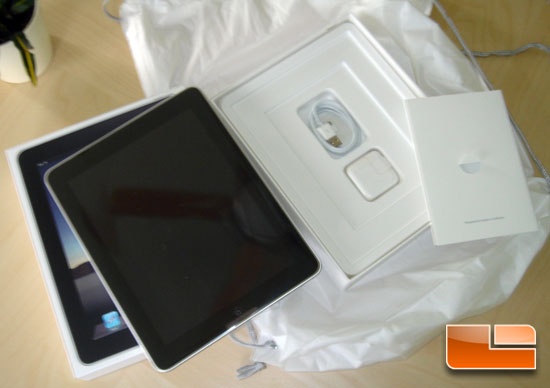
Remove the shrink wrap plastic protective covering from your factory fresh iPad, then open the box.

Step 2) Open iTunes

If you don’t already have iTunes installed in your computer, you need to download it at iTunes.com/download. Then just enter your email address, click the download button and click run.

Step 3) Connect Your iPad

Plug the cable that came in the box into the side slot on your iPad, then plug the other end into a USB slot in your computer. iTunes should open automatically. If it doesn’t, just click on the iTunes icon on your computer to open it up manually.

Step 4) Register Your iPad

iTunes will open a welcome screen the first time you plug your iPad into your computer. The next few screens prompt you to register your iPad and set up your iTunes account, if you haven’t already done this in the past. If you’ve already used the iTunes store, then you already have an Apple ID. That’s what you use to sign in into iTunes.

Step 5) Sign in

Just enter your Apple ID and password on the first registration screen and hit Continue. If you don’t have an Apple ID, simply check “I don’t have an Apple ID”, click “continue” and you can sign up for one. Just fill out the form. It’s pretty quick and painless.

Step 6) New iPad Set Up

After you get past the Apple ID registration form, you’ll be asked if you want to restore from a back up or set up a new iPad. If you don’t have anything previously purchased from iTunes, just select to set it up as a new iPad. Now that your iPad and iTunes account are in sync, you’ll see a folder for your new iPad on the left side of iTunes.

Step 7) Charge Overnight

Your iPad comes partially charged from the Apple factory but you’ll want to charge it up fully after playing with it for a while. Remove the cube shaped power charger from the box by pulling up on the little plastic tab then wrestle with the shrink wrap for a while. (Really? Do they really need to shrink wrap this?) Next remove the USB plug from your computer and plug it into the power charger, then plug the power charger into the wall. You’ll probably want to charge it overnight, so you can play with your new iPad all day tomorrow.

Have fun with your new iPad.  Take good care of it — it’s a precious item.  In the event that something does happen to it, there is hope: at iFixYouri, we can fix any issue you have with your iPad.

The Most Dangerous States in America For iPhones

Mishandling of electronic devices is a real issue. Thanks to SquareTrade, a company that deals in warranties, you can know which states are the likeliest to have broken iPads and iPhones. The South is apparently a real graveyard for some products, but the North is not far behind.

Examining both damage and complete breakage, SquareTrade found Mississippi and South Carolina to both be particular dangerous. Mississippi totals the most damage done to iPhones, but South Carolina holds the record for broken iPads.

Dangerous States for iPads

Are people dropping their phones in the Mississippi River?

New Mexico is not far behind Mississippi, and ranks number 2 for a dangerous place for iPhones to be. Maybe it’s called “New” Mexico cause everybody has to frequently replace their devices.

SquareTrade informs us that drops and beverage accidents are the most likely causes for damage. Some of the southern states have a reputation for being boisterous, and perhaps a little reckless. Maybe this contributes to the problem?

Other Dangerous States for iPhones

Other dangerous US states for iPhones are Rhode Island and North Dakota. For iPads, Nebraska, Washington D.C. and Alaska are not good places to be. Perhaps the devices are succumbing to the cold while people use them for navigation.

SquareTrade routinely puts electronic devices through rigorous testing to see how much abuse they can take. Ironically, it means being in the hands of an employee of the company might end be being one of the worst places to be for one of these great products.

Remember, if you don’t have a warranty, the alternative to buying a whole new iPhone is to just get your iPhone fixed by professionals like iFixYouri — in some cases, it’s cheaper than a warranty in the first place!

How to Tether an iPhone: An Insightful Guide

 How to Tether an iPhone

iphone-tether-ifixyouriMobile telephone networks have progressed significantly ever since the introduction of the 1G network which came to first use in 1981. Today, urban areas are already enjoying the great benefits of mobile 3G networks powered by CDMA technology (code division multiple access). Theoretical speeds of up to 42 megabits per second are possible with this enhanced technology. Practically, a decent speed of about 7.2 megabits per second is commonly realized.

With this speed, mobile internet users can already stream high-definition videos from YouTube almost seamlessly (only 1 megabit per second is necessary, according to Google). As telecommunication companies are currently on the progress of laying out the framework for 4G networks, mobile internet communications will even be faster and more reliable. To maximize the use of this amazing internet speed, mobile users can tether their internet-connected smartphones so that other internet-capable devices such as laptops, iPods, and tablets can share with the connection.


The Convenience of Tethering

Sharing of an internet connection, referred to as tethering, can be done over wireless local area network (Wi-Fi), Bluetooth, or via a USB cable. When internet connection is shared over Wi-Fi, the tether device becomes the mobile hotspot. Depending on the Wi-Fi standard being used, internet-capable devices can connect from a distance as far as 10 meters.

An internet tether can also be done via Bluetooth; in which case, distance and speed may further be limited by the type of Bluetooth technology being used. Although a bit cumbersome due to the extra wire required, the tether can also be established via the USB cable that connects to the USB ports of the tether devices.

Of all the possible connections, sharing the internet over the Wi-Fi network is the most popular because of network speed and reach. Furthermore, multiple devices can connect to the mobile hotspot simultaneously. The number of devices that can effectively connect to the hotspot is only limited to the established speed of the mobile 3G or 4G networks. If connection speed can reach about 1 megabit per second, then three devices can connect simultaneously without noticeable decrease in internet speed. If you can manage to get strong networks, reaching the speeds of about 7.2 megabits per second, you could get a dozen devices to simultaneously connect.


Step-by-Step Method for Tethering the iPhone

The iPhone, known for the restrictive nature of its company, has been in a consistent battle over allowing tether or not.

While Apple allowed the tether in the iPhone 3G through the iOS 3.0, succeeding updates of the mobile operating system removed the feature due to fair use policy restrictions. However, jailbroken iPhones were able to retain the feature. Due to popular demand, Apple reinstated the mobile hotspot feature in the iOS 5 mobile operating system.

In an iPhone 5 running the latest iOS, turning the mobile hotspot feature on is very easy.

Find the Option

iphone-tether-ifixyouri-3On the Settings menu, the Personal Hotspot submenu is accessible if the shareable 3G network is available. The Personal Hotspot feature is dependent on the kind of SIM card provided by the service provider.

Prior to accessing the Personal Hotspot submenu, the General Network settings must be checked for 3G and cellular data configurations. Both of these network settings must be turned on; 3G helps in loading data faster while cellular data allows the iPhone to access internet data via the cellular network.

If you don’t see any of the options, check this page to see if you have the minimum technical specs required.

Configuration

When the General Network settings are properly configured, the iPhone should already have mobile internet connection and this internet data access can be shared by sliding the Personal Hotspot option to the on-state.

Below the Personal Hotspot configuration, internet connectivity can be shared via Wi-Fi, Bluetooth, or USB tether. For wireless connections including Wi-Fi and Bluetooth, wireless security must be activated by setting up a password.

The older versions of the iPhone including the iPhone 4 and 4s and 3GS are compatible with iOS 5+; thus, these iPhone versions follow the same method as the iPhone 5 for internet tether. The original iPhone and its immediate successor, the iPhone 3G, may need certain hacks to enable the tether since these no longer supported in iOS 5+. Nonetheless, the slow cellular connectivity of the original iPhone and the iPhone 3G may not be worth the trouble of enabling the tether on these devices.


Connecting to the Access Point

Connecting to the iPhone tether is as easy as connecting to any Wi-Fi network.

1) On a Windows or Mac computer, connecting to the iPhone hotspot begins with searching nearby wireless networks.

2) When the iPhone mobile hotspot is active, the name of the iPhone is shown on the list. Upon clicking the correct option, the user is prompted to enter the Wi-Fi password previously set up.

3) The connecting device then obtains the IP address and automatically performs other wireless configurations for the tether.

That’s all there is too it!

The ability to tether can bring new life into how you use your devices.  If you have either an iPhone or a computer that you want to use for this process, but one (or both) is in need of repair, get it fixed at iFixYouri so you can enjoy the benefits of tethering.

Beware of Data Charges

REMEMBER: Data charges apply for the tether. Since the laptop and other larger devices can consume data really fast, data consumption related to the tether could easily go overboard. To avoid outrageous cellular bills, it is important to check with the telecom company for unlimited data plans pegged at a fixed rate per month.

 

Tweeted and Deleted: 10 Hilarious Celebrity Twitter Slip-Ups

Twitter is a great tool because it gives famous people a direct connection to their fans. Although it can be great for their ‘public relations’, it can also make them look really bad if they misuse it. For some celebs, a slip up just makes them look silly, or feel dumb, but for others, the consequences can be serious and permanent.

Here are 10 celebrities that slipped up, tweeted, and deleted.

10. Bow Wow DUI

Rapper Bow Wow had to delete a self incriminating tweet after realizing that it might not be the smartest thing to publicly broadcast the fact that he was under the influence of drugs or alcohol and driving a Lamborghini. What’s most impressive is that he didn’t wake up the next morning in the hospital! Most recently, Bow Wow is still having twitter problems: someone posted a picture, pretending it was him and Bow Wow spooning, and the rapper put a bounty on the poster’s head. Bow Wow originally claimed that he would give $2500 to anyone in Detroit who would harm the man responsible for the tweet.  Bow Wow then quickly deleted the message…and his entire Twitter account. Maybe he’s finally given up on Twitter, after realizing it’s too dangerous for him!

9.  Julliette Lewis Cyber Heckling


celebrity-tweet-delete-ifixyouri-1Actress and Singer Juliette Lewis, known from her roles in Due Date (2010) and What’s Eating Gilbert Grape (1993), gave a harsh review of singer Lana Del Rey as she watched Saturday Night Live from the spectator seats.

She later deleted the tweet, and replaced it with the following:

celebrity-tweet-delete-ifixyouri-2


8.  Denise Richards Phone Giveaway

Actress Denise Richards somehow managed to accidentally tweet her own phone number. I guess the simplicity of Twitter is still not simple enough for people who aren’t technically inclined. After finally figuring out how to delete the message, she had to figure out how to change her number, then posted this:

celebrity-tweet-delete-ifixyouri-3


7. Blige’s Misunderestimated Intelligents


celebrity-tweet-delete-ifixyouri-4

The tweet really says it all with this one. After being fed up with people trying to estimate her intelligence, she made it clear once and for all. Now no one will estimate wrongly again! Needless to say, she noticed her little typo and deleted the tweet.

6.  Kutcher’s Butchered Tweet

Joe Paterno (AKA “Jo Pa”) was a very successful football coach until November 2011 when he was fired after an former FBI investigator found evidence that he sexually assaulted young boys and tried to cover it up for years. Somehow, actor Ashton Kutcher heard about ‘Jo Pa’ being fired, but completely missed the rest of the story, and wrote this tweet:

celebrity-tweet-delete-ifixyouri-5

Oops! I’m sure it didn’t take long for him to figure out from his followers that there was more to the story. Rather than defend Jo Pa, like many of the students at Penn State, Kutcher did the wise thing and recanted with class (or, at least, with minimal continued embarrassment).

 celebrity-tweet-delete-ifixyouri-6

5. Katy Perry’s Bleak Leak

katy-perry-tweet-deleted

Russell Brand obviously can’t miss a chance for a prank, because he tweeted this picture of Katy Perry (can you believe it’s her?), with no makeup on in the early morning. Apparently, worried about her image, Katy Perry didn’t find it very funny and made Russell delete it right away!

 4. Cee Lo-Blow


celebrity-tweet-delete-ifixyouri-7

Cee Lo Green took a low blow at some of his critics who insulted his concert, suggesting that they were offended by his masculinity, and therefore gay. This isn’t a criticism I’ve ever heard about homosexuals, but Cee Lo Green realized his mistake and quickly deleted the tweet.

3. Oprah Gets OWN-ED


celebrity-tweet-delete-ifixyouri-8

Did you ever wonder how television producers know how popular television shows are? They can’t just track who’s watching what if it’s broadcast through the airwaves. Instead, a random sample of households are set up with special boxes that record what those people watch. Oprah decided it would be a good idea to fake her ratings by encouraging viewers with these special boxes to tune into her network: OWN (the Oprah Winfrey Network). This would have made it seem like more people were watching the channel than there actually were. She deleted the tweet after getting in trouble from Nielson, the company behind the boxes.

2. Bieber Backfires

After Kevin Kristopik hacked into Justin Bieber’s friend’s phone to steal his number, Bieber decided to get revenge by posting the following tweet with Kevin’s number, pretending it was his own.

celebrity-tweet-delete-ifixyouri-9

After a sudden avalanche of 26 thousand text messages, Bieber quickly deleted the message. I think it’s fair to say that Kevin’s plan backfired.

 1. Weiner’s Wiener

This is the most devastating tweet that any politician could possibly send. Anthony Weiner, a New York congressman, sent out a photo of his weiner, concealed only by briefs. The message was intended for a 21 year old college student, but, even worse, was broadcast for all his followers. After denying responsibility initially, he admitted his mistake and was forced to resign. Be careful what you tweet! If you want to follow any of the celebs above, or any other famous folks, on Twitter, one of the best methods is through the mobile app.  It’s a convenient way to stay on top of the trends and controversies.  All you need is a decent internet connection.  If your smartphone seems to be having issues, there is one place you can trust to get it fixed: iFixYouri.

Pinterest is now iPad-compatible

pinterest-ipad-ifixyouri

Pinterest is becoming popular with each passing day, and with mobile apps rolling out of its stable, it has become quite easy for users to pin their pictures, images and other things on the move. The social network has announced that it has unveiled an iOS app, which would be compatible with both the latest versions of the iPhone and the Apple tablet, the new iPad.

Pinterest Looks Beautiful on iPad

The Pinterest website can be viewed on the iPad clearly, as it has a full layout, making it easier for the user to view multiple pins simultaneously. The users can navigate to the different categories of the website, by a simple swipe on the screen. They can also use the integrated browser to view sites, which is the pin or the image’s source.

The Pinterest experience on the iPad is no different from viewing it on a regular computer, as the mobile app has several key features of Pinterest, thereby replicating the user’s experience on a bigger screen (but it’s more fun!). Users can like, share, repin, and even comment on the images through this mobile app. No better time to get your broken iPad fixed from iFixYouri so you can enjoy this fantastic social media app in all its glory!

iPhone Pinterest App Gets Update

The iPhone app has recently received an update, wherein a two-column layout has been introduced, thereby enhancing the overall user experience and also offering much better performance. The improved user interface makes it easier to see multiple pins, and makes is possible for the user to enjoy the Pinterest experience, similar to the experience on a desktop or an iPad.

P.S. The Pinterest mobile app can be installed for free from the online iOS store.

Smartphone, Tablet and Computer Repairs and News