Is The iPhone Screen Scratch Resistant?

Free iPhone AppsThe iPhone is a fairly resilient piece of technology. That does not, however, mean that it cannot be damaged. While the things that can cause the phone to become non-functional are few and far between, there are a number of issues that can cause cosmetic damage.

One of the biggest issues tends to be screen scratching, and figuring out whether the screen is scratch resistant is usually rather important. The answer to that question is quite complex, and figuring out ways to keep the screen from getting scratched is usually smarter than relying on the native protection of the device.

So is the iPhone Screen Scratch Resistant or Not?

The earliest version of the iPhone was not very resistant to scratching. The original phone and the 3G were fairly prone to scratches, but there was some improvement on the 3GS. From the 3GS onward, iPhone screen scratch resistant coating has been used. The degree to which the screen can be scratched varies from model to model – the 3GS is still relatively easy to scratch, while the 5 is much harder to scratch. It is important to note that all of the phones are “scratch-resistant”, not “scratch-proof.” If you try hard enough, you can scratch any of the phones.

Is it an Issue?

Most scratches on the iPhone are mere cosmetic issues. While they can be obnoxious for those who watch movies on the phone or play games, they will not interfere with operation. Larger scratches, though, can make the phone much harder to use. They usually do not interfere with the actual working processes of the phone or the capacitive touch screen, but they will make it much harder to see the various bits of information on the screen. As such, scratched screens can be a big problem.

Protecting Your Phone

If you want to make sure that your phone does not get scratched, you can take one of several options. The first, and perhaps cheapest, is keeping an eye on your phone at all times. Protecting it like it is fragile will keep it away from anything that can scratch it, but accidents can still happen.

A better solution is to make use of a screen protector. You can get a set of several protectors for a few dollars, and most will keep you from ever getting a scratch on the glass. At the far end of the protection spectrum are cases with hard fronts—almost nothing can get to your phone through these cases.

How to Repair a Scratched iPhone Screen

The bad news is that a scratched screen is a problem that you cannot repair on your own. The good news is the process for getting it fixed is relatively simple and inexpensive.  You can send the phone to an iPhone repair store like iFixYouri.  The cost for scratch repair will always be cheaper than buying a new phone.  Now that you know the iPhone screen isn’t completely scratch resistant, you should take extra care of it.

Safely Handling your iPhone 5

Does the new iPhone 5 from Apple get damaged by merely handling it? Well, no one is quite clear about this, and we will only know for sure when people have used this phone for at least two years.

The issue potentially lies in the phone’s case made of anodized aluminum. The main advantage is quite obviously the lightweight; however, when the anodizing wears off, it can cause issues of a cosmetic nature.

iPhone 5 Aluminum Case

In aluminum, you will not find the same rusting process as in iron. When iron rusts, the oxidized layer that forms on top falls off, and the rusting process starts for the layer underneath, and so on. In aluminum the oxidized layer does not fall off, which prevents the layer underneath from being oxidized. The fact is aluminum does rust, but the “rusting” stops with the initial layer.

The process of anodizing deliberately increases the oxidized layer, by about twenty to forty factors. This provides underlying layers much better protection from rust. However, my suspicion is that the iPhone 5 has been anodized to make the dying process easy, so that any color can be given to the phone. If aluminum is not anodized, you will be left with the natural aluminum color. Dying is only possible when the surface of aluminum is anodized.

It is however important to note that anodized layer can wear off in environments that are highly alkaline or acidic. According to industry experts, ph values in range of five and nine do not have much effect. However, going beyond this range, the wear will start, but nobody is sure how much.

Safely Handling the iPhone 5

The point to note is you get a ph range of 4.5 to 5.5 in human sweat. This being the case, the dyed layer of your iPhone 5 has a chance of wearing off when you handle your phone.

There are different common items that have anodized aluminum on them from laptops to frying pans. However, experts feel that none of them would be handled like a phone, and constantly exposed to human sweat. Therefore, the iPhone 5 will experience wear due to sweat, but the extent of wear is not yet clear.

After handling your iPhone 5 for a while, if you are aware that the exterior is getting worn out, you may be in need of repairs to ensure that the electronics are protected.  In this situation, don’t hesitate to contact professionals like iFixYouri who can determine how to fix any iPhone issue you face.

Free iPhone Apps That Will Make Your Life Easier

When it comes to benefiting from all that technology has to offer, you have to know there is more to your iPhone than playing Angry Birds – especially since it’s not a free app. There is nothing wrong with buying apps or playing games while you wait for your ride, your doctor, or while enduring public transportation.

The real beauty of technology and its entire splendor is deep-seated in applications, or apps, that you can download, to help you live an easier, more informed life. Although some cost money, there are tons of no-cost versions you can download to make your life a bit more efficient. If you are an Apple aficionado, the best free iPhone apps are right at your fingertips.

Free iPhone Travel apps

There are several free iPhone apps that will help you travel the globe much more efficiently than you ever thought possible.

1)      Airport Utility

Airport utility app allows you to view and control your Wi-Fi network, Time Capsule, Airport Extreme and Express at the touch of a button. What does that mean, exactly? It means you will be able to see what you are connected to, and how you are connected to it. It will allow you to change your Wi-Fi settings, and access base station, a DNS server, IP address and router address. This will ensure that you are connected at all times, safely and efficiently.

2)      FlightTrack

This app is personally responsible for on-time travel worldwide! Well, sort of. FlightTrack allows you to enter a flight number or simply a destination and airline name, and follow the flights activity from afar. You will know when a flight is delayed, early, on time and even when it touches down! The GPS magic of FlightTrack allows you to view an image of the plane as it traverses its flight plan, so you can see exactly where the traveler (even if it is you) is at all times. This allows you to pick someone up from the airport on time, without having to hang out in the cellphone lot for an hour.

3)      MapQuest 4 Mobile

Should that flight take you to a foreign land or even a city you have not lived in since you were a kid, MapQuest 4 Mobile app will give you step by step, voice guided directions, no more wandering around or appearing as if you really do not belong, thanks to this navigational genius.

Free iPhone Lifestyle Apps

Let’s face it, whether you are traveling across the globe, or sitting on your very own porch, you are going to need something, at some point. That something can be in the form of the closest Chinese restaurant, the answer to a trivia question, or a recipe on the fly — you know, since you are already at the grocery. Whatever your question, do not hesitate to tap one of the following best free iPhone apps to make it happen.

1)      Chrome

In a fistfight, Google chrome app will always win against any other browser, especially where an app is concerned. This monumental beauty is fast, organized, and will have the results you need in no time.

2)      Facebook

You want everyone to know you just landed in Tokyo or that your mom’s famous cookie recipe has just come to life in your very own kitchen, not hers. Go ahead and tap your Facebook app, and update your status before the kitchen timer goes off. In fact, you could do so with the other hand on the cookie sheet, it’s so easy to use!

3)      Sports Tap

Even if you only follow your hometown teams, Sports Tap iPhone app gives you the ability to pick the teams you follow, and to receive updates for each of their games with ease. The results are easy to read, and the navigation is perfect for anyone who is simply trying to impress the sport’s emperor in their life.

4)      IMDb

If you think you could not care less whether the girl in the last episode of “The Wire” was also the girl from a sitcom you watched six years prior, it does not mean you will not look it up. When you do, nothing makes it easier than the IMDb app. You can also check out movie trivia, trailers and even shooting locations, if you’re planning on crashing the set.

5)      Amazon Mobile

The truth is Amazon owns everything these days, which is great news for any online consumer, no matter what their views on Capitalism entail. Download the Amazon Mobile free app, and you will never miss another birthday, holiday, anniversary or book, music or movie release (for yourself, of course) again. The best part is, just like the website, it will ship everything from a new pair of flip-flops to a balance bike for your four year old niece anywhere.

6)      Nook, Kindle or iBook

Listen, we all have our affinity for one or the other. Since you can get any of the three for your iPhone, there is no reason to leave a book lie on another device when any of the three apps can be easily accessed from your phone. Start reading more, and enjoy the convenience of whatever e-reader suits your fancy, from your iPhone. It is the one thing that is always with you.  In addition, they all have magazines, newspapers and periodicals that will allow you to spend more time digesting knowledge.

7)      Shazam

Everyone has had the experience where they hear a song on the radio and they just can’t remember the name of it, or who sings it.  Shazam will give you all the information you need, with the tap of its app icon.  Musical magic.

8)      Epicurious

If you have a fridge that is full of groceries but you do not know how to cook, just type what you have into the Epicurious app and it will search for professionally created and tested recipes. This is the perfect app for staying in your pajamas on a rainy day, instead of eating out.

With over 300,000 free iPhone apps available (and counting), your idea of the best free iPhone app may differ from your friend’s and co-worker’s. The good news is, they are easy to use, and if you find you do not like it, all you have to do is delete it and find a replacement!

The internet is full of hundreds if not thousands of free iPhone apps, but you won’t be able to appreciate any of them if your iPhone is damaged. If your iPhone isn’t working properly due to damage, it would be easier to get it repaired than to buy a new one. iFixYouri specializes in repairing broken and damaged iPhones. If you accidentally broke your iPhone’s screen, or you dropped your phone in the pool, bring it or send it to us and let us repair it for you. Once your precious device is up and running again, you can start enjoying the universe of free iPhone apps.

Review of ZAGGkeys PRO and PROplus

It would be ideal if your iPad had a Bluetooth keyboard that wasn’t clunky and bulky. If it can protect your iPad, and is slim and light, it is even better. Well, ZAGG has just the thing you need: the ZAGGkeys PRO keyboard case for iPad. The company has built upon their success of ZAGGmate. The latest models have a seamlessly matching design for the form of Apple’s tablet.

ZAGGkeys Features

ZAGGkeys PRO has a nice thin profile with a depth of 0.24 inches and is built for both the third generation iPad and iPad 2. It has an aluminum construction and the case attaches magnetically to the iPad when not being used, which protects the screen from any damage during transit. The ZAGGkeys case weighs under a pound, matches iPad’s style, and the display can be held in landscape or portrait mode.

This patented ZAGG keyboard is ultrathin, and Bluetooth 3.0 enables you to connect it to your iPad directly. Even though ZAGGkeys is quite compact, the rechargeable batteries that are built-in can last for many months on a single charge. The PROplus model of ZAGGkeys has the additional feature of a backlit keyboard, which is excellent to type in low light, and it evokes the look of the MacBook Pro. When you close or open the case, ZAGGkeys can automatically sleep or wake your iPad with its magnet, just like the Apple Smart Cover.

Both PRO and PROplus models of ZAGGkeys have full compatibility with iPad 3 and iPad 2. The keyboard might add a few millimeters to the size of your iPad, but the design of the keys will give you a natural experience of typing. Many function keys specific to the iPad are also included, so that it is easier to use iOS with touch screen and keyboard. This excellent portable product is made even better by ZAGG by introducing the magnetic enclosure of the Smart Cover and Bluetooth 3.0.

Price

The PRO model of ZAGGkeys is available for $99.99 and PROplus is for $129.99 with free shipping from the website of ZAGG. If you’re thinking of getting a keyboard but don’t want a traditional clunky one, this might be just what you need.

Investing in the keyboard is one thing, but the added protection of a case is essential if you want to continue enjoying your delicate iPad uninterrupted.  In the event that you damage your iPad before you can get a case, send it in to be repaired – iFixYouri specializes in professional iPad repair.

3 Potential Fixes for iPhone Issues

iPhone issuesIf you are having iPhone issues, you are not alone. These popular devices are certainly not bullet proof, and they can act up from time to time. One of the simplest issues many run into is the phone not turning on. If your iPhone will not turn on, you might believe that it is broken and you will have to get a new one. This could be the case, but certainly is not always true.

Here are 3 potential fixes:

1) Restart it

This might seem obvious, but if the iPhone is not turning on then the first thing you should do is just make sure it is turned on. In order to verify this, you simply press the Hold button on the top right corner of the phone for a few seconds. If it turns on, your problem is over. Obviously, this is the best-case scenario, but it might do the trick for you.

Of course, in many instances the problem is more complex. If the above step does not work, then press the hold button and the home button simultaneously. Make sure to do this for a minimum of 10 seconds. In many instances, this will turn on the phone.

2) Use DFU Mode

Sometimes an iPhone will get to the silver logo and just keep restarting. If this is your problem, you have an issue with the booting system. For some people this happens after they update the operating system.

Fortunately, fixing this issue is not hard. All you have to do to stop this problem is put it in DFU Mode (Device Firmware Update) mode. Note: this is not the same as recovery mode – it is a lot more thorough.

To get to DFU mode, you first have to connect the iPhone with your computer. Since the phone is off, you will have to hold down the sleep/power button and home button simultaneously for 10 seconds. It needs to be precisely 10 seconds-otherwise the phone will enter recovery mode instead of DFU.

Once 10 seconds have gone by, let go of the sleep/power button, but continue holding the Home button. At this point, the Apple Logo will come up. However, make sure you keep holding the home button until after the recovery warnings come up.

Note: there is an easy way to tell if you are in DFU or recovery mode. All you have to do is look at the iPhone screen. Should it be black, then you know you are in DFU mode. However, if it is showing a cable connection with the iTunes icon, you are in recovery mode.

3) Proximity Sensor

Sometimes the proximity sensor has issues. This sensor is responsible for locking the phone when it is close to your face. If this sensor stops working, then the screen will not turn on.

This problem is not common, but it can happen. The way to fix the problem is to press the home and hold button as before, in order to restart the system. This generally fixes the problem.

Conclusion

If after trying all the methods listed above your iPhone still doesn’t start, then it might have bigger problems than anticipated. At that point, it would be advisable to either ship or take your phone to an iPhone repair store for checkup. There are several stores but none of them can compare to ifixyouri.com.

DIY Fix: The iPhone Repair Kit

iphone-repair-kit-ifixyouriThe iPhone has a carefully engineered design that it appears so sleek and compact while packing the best features a smartphone can have beyond the mainstream standards. Unlike other electronic devices with screws and cracks, which can be used to access the internal components, the iPhone appears seamless, brought about by its unified design concept. Thus, the internal components of the Apple smartphone cannot be accessed easily without the use of an iPhone repair kit.

Why Get An iPhone Repair Kit?

The issues one may experience with an iPhone is indicative of the problems one may experience with any sophisticated electronic device. However, the added element of  this particular device being so closely streamlined to our own individual lives make it that much more sensitive. Here are the reoccuring problems that may warrant an iPhone repair kit:

Issues with the iPhone

Apple has always emphasized integrity when it comes to the design of their products. The iPhone, in particular, was designed in such a way that end-users would just have to enjoy the features of the product without having to deal with common issues that other smartphones possess. In certain instances, however, the iPhone can still be prone to some unlikely issues such as screen damage and battery replacement.

Damage of the LCD Screen

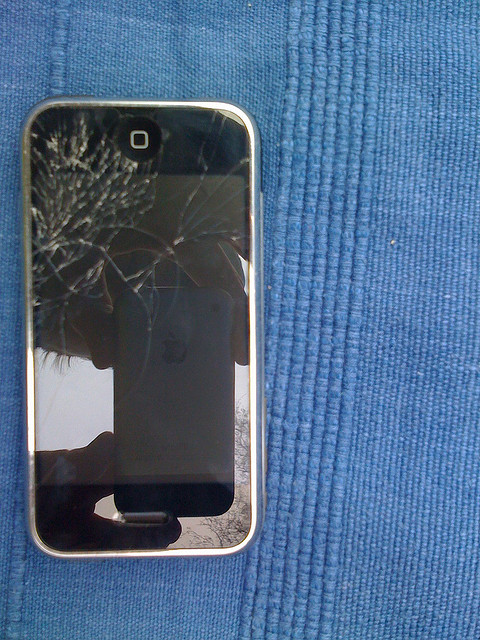
Screen damage of the Apple smartphone is highly unlikely because of the tough Gorilla glass protecting the liquid crystal display (LCD) screen. Nonetheless, impacts strong enough to push beyond the threshold of the Gorilla glass can still occur. When the glass is cracked, the phone may still function but the display can be difficult to read due to the crack lines along the damaged portion of the screen.

Shorter Battery Life

Another issue with the iPhone is battery replacement. No matter how strict quality control is in the manufacturing unit of Apple, product deviations from the norm are unavoidable. Among these deviations, battery life seems to be the most relevant. Not all batteries are created equal although strict manufacturing conditions intend to create these power packs identical. Hence, some iPhone units have longer lasting batteries while some others have less. For this kind of issue, battery replacement is ultimately the most obvious solution if not to buy another smartphone.

The iPhone Repair Kit

Note: It should be emphasized that due to the complicated nature of this device, the best measure for having an iPhone repaired that has experienced significant damage would be to take it an expert such as iFixYouri.

A set of screwdrivers is not enough to pry open the iPhone for repair; that is why third-party manufacturers came up with a repair kit especially put together for repairing the Apple smartphone. A kit designed for this purpose usually comprises opening levers, guitar opening tools, and pentalobe screwdrivers among others.

Opening levers are ideally made of strong plastic so as to avoid scratching the metallic components of the unit while still being able to apply enough force. The pentalobe screws designed for resistance from tampering can be unscrewed with specially designed pentalobe screwdrivers. Other accessories may include suction caps and phone mounting brackets for organized DIY repairs of the smartphone.

The Simple Truth

Not all issues, however, can be repaired with a DIY iPhone repair kit. For advanced technical issues beyond DIY repair, iPhone owners should bring their units to repair centers where skilled technicians with advanced tools can certainly solve most, if not all, issues.

How to Clean a Laptop

How to clean a LaptopA new laptop operates smoothly and rarely experiences overheating. However, this changes with time. Your notebook uses a processor to process tasks, such as online browsing, rendering, and retrieving and saving files, just to mention a few.

Since a laptop requires electrical power to work, it often generates a lot of heat. To cool the processors, a laptop relies on fans and heat sinks. If you do not clean the inside of your gadget regularly, dust is likely to buildup and greatly reduce the cooling efficiency of the heat sinks and cooling fans.

When this happens, your laptop may overheat and shut down on its own. However, this does not necessarily mean that your machine has either a mechanical or a software problem. In fact, cleaning the dirt is likely to clear the air vents and improve its performance. Follow these steps to clean your computer safely.

Getting Started to Clean Your Laptop

Laptops vary widely in terms of both design and functionality. Start by reading the user manual and making a visual inspection of your computer. Try to look for panels that you can unscrew to access certain internal parts, for example, optical drives and fans.

Fortunately, devices with access panels at the bottom are quite easy to dismantle. In addition, most manufacturers maintain websites that offer invaluable advice.

Get the Right Tools

In order to dismantle your laptop safely for cleaning, you need to have the right tools. For one, you need tools to unscrew and open your machine’s casing. These include:

  • screwdriver
  • a guitar plectrum
  • a can of compressed air
  • a pair of tweezers
  • a plastic putty knife
  • a soft bristled brush
  • a small flashlight.

Most of these tools are readily available at nearly every electronics store. With these tools, you would be able to pry open your computer without damaging it and cleaning dust and grime that has accumulated inside over time.

Removing and Cleaning the Access Panels

How to clean a LaptopBefore you begin the cleaning process, power down your laptop and unplug it from the mains power. Place the computer upside down on an anti-static mat.

If you do not have an anti-static mat, make sure you are wearing an anti-static wristband in order to ensure that static charge is dissipated. After this, remove the battery and then use the right screwdriver to remove the access panel screws. With the access panel or case out of the way, you should be able to see components such as processors, fans, heat sinks and graphics cards.

Cleaning Fans and Air Vents

How to clean a LaptopBefore you proceed, it is important to note that fans spin in a particular direction. If you force the fans to spin in the wrong direction, you are likely to damage them. With this in mind, it is never a good idea to use compressed air to clean your fan. However, if you have to use a can of compressed air, pin the fan firmly in place.

This will prevent the fan from rotating in the wrong direction. Alternatively, you may use cotton buds to clean dust and grime. You can also use a pair of tweezers to pick up large pieces of debris lodged inside the fan blades. For the air vents, you can use compressed air to blow out dust.

Motherboard

Most laptop motherboards also attract balls of dust and lint. Use a pair of tweezers to pick up these balls of dirt. In addition, use a brush with soft bristles to remove dust on the motherboard’s components. If you can, do not touch motherboard components with your hands. This is to avoid leaving greasy smudges on the electronic contacts.

Cleaning the Heat Sink

This typically depends on the type of heat sink. In some laptop models, you will find the heat sink inside the fan casing. If this is the case, follow service manual instructions to clean or remove the heat sink. On the other hand, the heat sink may be a standalone unit. You can use a pair of tweezers to remove dust balls. Finally, use compressed air to blow off any remaining dust particles.

The Keyboard

Your laptop’s keyboard is one of the most dirt-prone parts. Common dirt particles include food crumbs, dust, lint, and hair. Depending on the design of your laptop, you may have to remove several screws to access the keyboard. After this, disconnect the motherboard connector. This will free the keyboard for cleaning. Use a damp cloth to clear food crumbs and dirt that has stuck to the keyboard. If your manufacturer recommends using compressed air to remove dirt, you can proceed. Otherwise, do not attempt to do so if your manufacturer says it is not safe.

Most computer manufacturers recommend cleaning a laptop once every year. This will get rid of dirt and dust that has accumulated over 12 months of regular use. Start by gathering tools for opening and cleaning your gadget. These include electrical screwdrivers, compressed air cans, forceps or tweezers, cotton buds, as well as a piece of damp cloth. Always use an anti-static wristband to dissipate static charge. In addition, read the user manual carefully. This will give you a good idea of what you can or cannot do during the cleaning process. If you damage your laptop while cleaning it, or if you’re experiencing problems that you can’t fix by cleaning it, take it to a laptop repair store and get it checked.

Siri is Not Working! Help!

Siri adapts to each individual iPhone and iPad user over time. She has something like a programmed personality. She makes driving safer and finding restaurants in any locale fast and easy. So what happens when your virtual assistant isn’t working?
Siri not working

Siri Background Information

In 2011, when Siri was still a beta product, and users expected plenty of functionality issues, nobody ever thought that Siri would ever stop working. Siri went silent and people started to worry. Many iPhone users also experienced poor battery charge. Their device died in twelve hours after a full charge. Apple fixed the issue, released a repair and now it should work excellently for everyone. However, people still wake up to find Siri not working.

Do-It-Yourself Siri Diagnostic:

At times it is possible to fix the problem yourself. Listed below are some of the ways to check and ensure that everything is running smoothly.

  • Check Internet connectivity
  • Enable location services
  • Ensure Siri is turned on
  • Check audio settings
  • Check security settings

Reasons Why Siri is not Working

It might sound strange, but some of the most common reasons arise from these five issues.

No WiFi

Not everyone realizes that the Internet is needed to operate the virtual assistant. The device sends information to an Apple Server for processing, and without connection, this transaction cannot occur.

Disabled Location Setting

In rare cases, a person may think Siri is not working because they are trying to use her location feature but have it disabled. The quickest diagnostic to test this problem is to ask Siri a simple question such as the built-in humor feature, “Siri, what is the meaning of life?” Her answer is humorous and serves to show if she is functional. If so, turn on the location function and continue.

Disabled Audio Functionality

Under certain circumstances, an iPhone user might also disable incoming our outgoing audio. If this happens, the iPhone will not receive input, or inversely, be able to deliver output.

Security Settings

Even more rarely, a user might deploy the iPhone’s security measures. In certain security settings, the iPhone does not operate on the Internet even when it is available. Most commonly, airplane mode is to be blamed for inaccessible Internet.

Siri Off Mode

It is common that a person has turned Siri into “off” mode. The phone owner merely needs to navigate to general settings and turn Siri on, in their native language. It won’t work in every language but readers here should not have that problem.

If each of these reasons has been checked and you still have no success, contact an iPhone repair service like iFixYouri — the problem might be greater than just losing touch with your virtual assistant.

Smartphone, Tablet and Computer Repairs and News