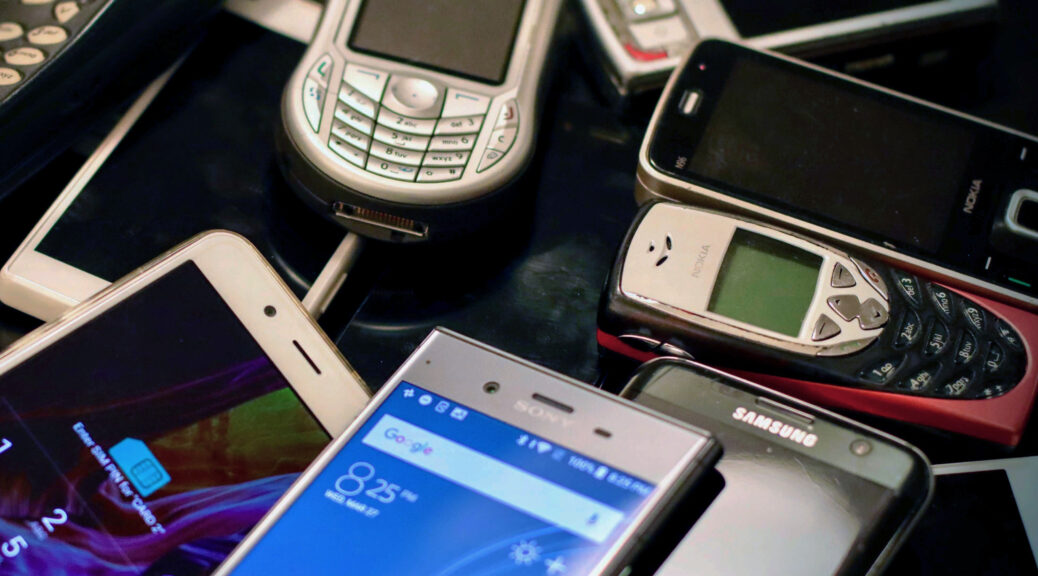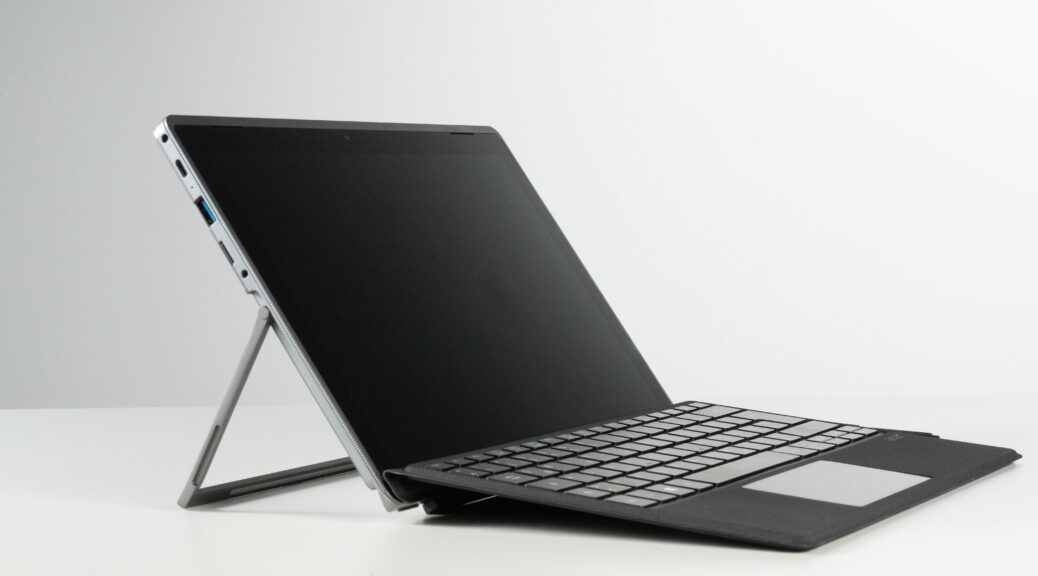
How to Fix Your Smartphone or Tablet and What to Avoid

I bet you were told once or twice to never believe everything you see online. This is the case when it comes to tech hacks and DIY repairs. There are hundreds of videos online claiming to be the answer needed to fix your smartphone. In reality, they only offer temporary fixes and can cause further harm to your device.

One of the most popular “hacks” circulating the web and cited by many sources is applying toothpaste to your cracked screen. Allegedly once toothpaste fills the cracks of a screen, they suddenly smooth out and disappear. Don’t do this.

Even if your phone does appear smoother, there are still cracks that need to be fixed and you are left with a sticky, minty mess. If a hack seems too good to be true, take it with a grain of salt.

Rather than relying on videos that can be misleading, turn your device issues over to a tech repair service like iFixYouri.

iFixYouri specializes in repairing phones, tablets, computers, game consoles, and accessories.

Specifically for phones, iFixYouri offers:

  • Glass repair
  • LCD repair
  • Battery Replacement
  • Water damage repair
  • Vibrate switch repair
  • Ear speaker repair
  • Volume button repair
  • Front/ Rare camera repair
  • Power button repair
  • Microphone repair
  • Loudspeaker repair
  • Charging port repair
  • Backglass repair

All of the following is done at a reasonable price, but if you want to take things into your own hands, you’ll need to use the proper tools and follow the right steps.

Fix your Smartphone: iPhone 6 Battery Replacement

If your device has poor battery life, the video and steps below may help:

Unscrew the two pentalobe screws on either side of the lightning dock on the bottom edge of the iPhone 6.

Use the isesamo to slowly and carefully separate the glass screen of the iPhone from the body. Start on the bottom edge of the device and proceed slowly. The flex cable for the screen is at the top.

Slowly pull the top of the screen away from the body and locate the EMI (electromagnetic interference) shield located by the bottom right of the battery.

Unscrew the two screws securing the EMI shield to the logic board and remove it.

Using a spudger, disconnect the battery cable from the logic board.

The next steps involve removing the adhesive tape underneath the battery to make it easier to remove. Slide one tip of your tweezers under the black adhesive strip at the bottom of the battery. Each black strip runs halfway across the bottom of the battery.

Now roll your tweezers away from the battery while simultaneously pull the tape out from underneath the battery.

Continue to pull the tape out from underneath the battery and roll it around the tweezers. It may help to pull diagonally out from the corner as the tape runs up the full height of the battery.

If the white tape snaps apart you may need to use a spudger to carefully pry the battery up. Continue using a combination of tweezers and the spudger to separate the battery from the body of the iPhone. You will have to repeat the process to remove the second strip of tape.

Now you can remove the battery. Use a small length of some adhesive tape to secure the new battery in place. Reconnect the battery cable to the motherboard and screw the EMI shield back on.

Reattach the screen by angling the top in first and then clicking the side clasps into place. Replace the two screws near the lightning dock. That’s it! You’re done.

Fix your Tablet: iPhone Mini Screen Replacement

If you ever want to remove your tablet’s glass and LCD, here’s another helpful video:

Tools Required

Instructions

  • Loosen adhesive with the heating pad (10min @ 75°C)
  • Pry with a metal spudger slowly and gently.
  • Lift glass from the bottom to avoid damage to the flex cable.
  • Unscrew the screen from the body with a Phillips head screwdriver. Keep your screws organized.
  • Be extremely careful while removing the screen. Go gently around all the edges to loosen the LCD.
  • Unscrew the metal shield with your Phillips head screwdriver. Keep your screws organized.
  • IMPORTANT: Disconnect the battery.
  • Disconnect the LCD Flex.
  • BE EXTREMELY CAREFUL. Separate the backside of the digitizer flex from the housing.
  • Then, USING A PLASTIC SPUDGER, remove the digitizer clip evenly from the logic board.
  • If the end of the flex cable is still attached, align your spudger with the side of the iPad and disconnect it.

Needless to say, several helpful tutorials can be found on iFixYouri’s YouTube page.

If you ever have trouble while attempting to fix your smartphone, feel free to visit iFixYouri for further assistance!

Image by InspiredImages from Pixabay

Five Common iPhone Problems and How To Fix Them

Continuous issues with your iPhone can be very disappointing and can derange your day-to-day life. If you are encountering one of the common iPhone problems, the resolution may be simpler than you think.

Before considering your device a done deal, look over these simple solutions for five of the most frequent iPhone issues.

Broken Touch Screen

A quick knock can send your iPhone tumbling, dropping to the ground, and disabled from a broken screen. Disregarding the breaks can cause increasingly more harm to your gadget. For example- more cracks will appear, the touch screen will become unresponsive, the LCD will bleed and spread, or you may even end up with an injured finger. If you happen to break your phone screen, it’s best to quickly replace the glass and digitizer. To prevent your screen from breaking once more, the best thing to do after getting it replaced is investing in a quality tempered glass screen and a durable phone case. These steps apply for both new and used phones. Protecting your device from the moment you get it will safeguard against common iPhone problems in the future.

High Temperatures

Your phone will heat up when used but should always remain relatively cool. If your phone becomes warmer than usual, it could be due to a faulty component such as the battery. As a good first step, check on the status of your phone’s warranty, being that overheated phones are typically a sign of bigger issues. The warmer the device, the more harm may be done. To slow the burn, verify what apps are currently running, what apps are constantly running in the background, if anything is updating, or if any software can be closed. You should also avoid leaving your phone in hot cars and direct sunlight because they retain heat quickly. When outside, it is best to keep your phone in your pocket or bag. If your phone continues to overheat, you ought to consider having a professional iphone repair service to run a diagnostics on it.

Little Storage Space

With all of the photos and videos we take, apps we download, and documents we store on our phones, running out of storage space is a very common issue. Little storage is an issue because it hinders the overall performance of your device. To restore life to your phone and improve its performance, simply delete unnecessary pictures and videos, delete unused apps, or increase your iCloud storage settings. Another alternative is to sell your iphone to a buyback company, and purchase another or utilize one with a higher capacity limit.

System Crashes

There’s nothing as irritating as when an application ceaselessly crashes as you are using it. This is one of the common iPhone problems that can be caused by an outdated app or operating system, as well as conflicting apps running in the background. As a solution, close all apps and restart your phone. If this doesn’t work, open your App Store or Google Play Store and ensure all apps are refreshed and running the most recent update. Much of the time, all your phone needs is a system or app update.

Low Battery Life

Phones are constantly used throughout the day. It’s no surprise that many of them need to be charged several times within 24 hours. This also leaves no surprise when phones start to experience a shorter battery life. When battery quality begins to decline, it will significantly slow down your phone’s performance, causing headaches in return. While there are numerous reasons why a battery will drain rapidly, there are a couple of steps to take to help your battery life, and at last fix the issue.

Check Your Battery Details

Check your battery health by navigating to your settings menu and selecting the battery settings option, where you’ll be able to view the battery’s full details (on most devices). You are recommended to replace your battery if its health is below 75 percent. Keep an eye out for a professional repair company to help you, or if you’re feeling confident and tech-savvy enough, buy a DIY kit to perform the procedure yourself.

Use High Quality Charging Accessories

The use of an inadequate charger with a low voltage output could be the reason for a slow charging phone. Many times, a bad charging cable or block will lead you to believe you’re charging your phone when in actuality your phone remains unchanged. You may not realize it, but chargers break with ease from all it endures. If your cable is the issue, you can easily buy another one.

Check Your Charging Port

A brief glance within the charging port could yield results. It very well may be blocked with dirt and debris. On the off chance that it is, find a wooden toothpick. Delicately scratch the dirt and lint out. You may be able to improve your phone’s performance.

Watch Your Screen Time

To increase the life of your phone’s battery, attempt to limit your screen time. There are apps that will deplete your battery more than others (video and games), so make certain to focus on ones that set your phone to quickly deplete. Be sure to delete any that are not essential to your phone.

As a final attempt, turn on low power mode/battery saving mode under your settings menu. If these fixes don’t change anything as far as battery life goes, it could just be the inevitable dying battery.

At the point when that happens, it’s time to surrender the battery and swap it with one that will allow your phone to live longer.

What Are the Tools Needed to Fix My iPhone, iPad and MacBook?

Are you trying to turn your broken iPhone, iPad or Macbook into a D.I.Y project? Even though fixing your device sounds like a good idea initially, the work you do to it  could possibly cause more damage or break it completely. 

Fixing a device is a tedious task and requires a lot of your time and effort, as well as the tools needed. 

Here are the tools you’ll need to be successful at fixing an iPhone, iPad or MacBook  

  • Small Phillips screwdriver
  • Small Flathead screwdriver
  • Plastic opening tools 
  • Suction cup 
  • Nylon Spudger 
  • Point Pentalobe screwdriver 
  • Fine tip curved tweezers 
  • Microfiber cleaning glass 
  • SIM card ejection tool 
  • Handle bar
  • Flexible extension shaft 

While some people have had luck repairing their device with an at-home tool kit, others not so much. Below are real reviews written in response to a tool kit: 

“Tri tip screwdriver has successfully stripped over half of the screws I’ve tried to remove. This is not a quality product. Maybe I just happened to receive a dud, but I’m definitely not impressed. The Tri Tip screw driver appears to not be “sharp enough” to engage the screw head and get a grip on it. In turn, it strips the screws easy. This has now caused a mess that I have to deal with, and also wait to get another kit of better quality. At first I thought it was user error, but it stripped two screws in a row with proper pressure applied after only removing two screws.” 

“No Phillips screwdriver, no tweezer, basically useless for computer repairs.”

“The kit comes with everything you’d need, but the screwdriver heads and extensions drop right out of the handle, a simple magnet would hold them in place, but what I got was completely useless!”

Most importantly, fixing one of these devices, even with the tools needed, requires experience. Without this, you will probably spend several hours flustered over a procedure you don’t understand. 

To avoid the mishaps and frustration, we strongly recommend that you have an expert repair your device for you. Even though repairs may seem costly, partnering with a reasonably-priced repair service will save you time and money. 

Photo Credit: Kilian Seiler

iPhone with iOS 14: How to Upgrade

Apple said it best. The latest update- iOS 14- looks brand new and feels like home. This update came alongside the iPhone 12, which was released in October. The goal of this post is to show how to upgrade your iPhone with iOS 14.

The update’s fresh features are just one of the many reasons why people are so eager to get their hands on the iPhone 12. Yet, the update is also compatible with the iPhone 6 and later models as well as several iPad models.
Here’s a highlight of some of the new iOS 14 features that will help upgrade your iPhone experience.

Add Widgets to Your Homescreen

With iOS 14, you can now customize your home screen and other pages to be more fitted toward your personality and lifestyle. 

iPhone with iOS 14: Widgets

Widgets, which at one point could only be examined with a swipe to the left, can now be placed directly on your home screen, allowing quick access to information.

Convenient widgets to have:

  • Weather
  • Mail 
  • News
  • Clock 
  • Podcasts 
  • Notes 
  • Music 
  • Calendar 
  • Travel 
  • Stocks 
  • Reminders 
  • Fitness 

Each widget can be sized and placed differently, as well as stacked on top of each other to save space and keep your screens organized.

iPhone with iOS 14: App Library

Another iOS 14 feature that helps with saving space and organization is the App Library. Instead of having your apps at random and scattered, or having to manually organize your apps in folders, your phone does all the work for you. 

The App Library automatically organizes your apps into convenient categories such as Suggestions, Recently Added, Social, Entertainment, and Creativity. The best part about this update is that every one of these folders can be found on one screen. All you have to do is swipe all the way to the right and there you have it!

Multitasking in iOS 14

Have you ever scrolled through your socials or read your emails when suddenly you’re interrupted by a phone call that takes up the whole screen? With the newest update, you can do two things at once.

 Because of a new compact design, only a small top portion of your screen is used when someone gives you a call. This feature allows you to answer your calls while still being able to navigate your phone.

iOS 14 Multitasking with facetime
iOS 14 Multitasking with FaceTime

What about facetime calls? The same still stands true. Now you can talk face-to-face with a friend (sort of) without having to pause what you were doing beforehand. 

Even movies and videos? Sure. Without having to pause your movie marathon on Netflix, you can get other tasks done. 

Think about it this way, the more you can get done at once and the less time you have to spend on your phone, the better your screen time statistics. This sounds like a win-win situation.

Stay conveniently connected

Navigating through your messages can be a bit overwhelming at times, especially if you are carrying several conversations at once.

To make this task easier, iOS 14 has introduced several features to ensure that the right person receives the right message. 

Pinned conversations

With pinned conversations, you are now able to pin up to nine significant messages to the top of your conversation list. 

Pinned conversations will indicate unread messages, give you a preview of the person’s reply and let you know how they react to a message you sent.

Group photos, mentions, and inline replies 

Do you have several group chats that are difficult to differentiate because they have the same overlapping people, or you find yourself becoming annoyed because your phone is flooded with messages? 

Now you are able to add an image to group chats to help tell them apart, send a direct message to someone within a group chat and reply directly to a message within a group chat. This way your notifications are reduced and you see the messages meant for you. 

Search Securely with Safari

According to Apple, Safari is more responsive than ever before with the iOS 14 update. The update ensures that you are able to browse the web efficiently and securely. 

Translate What You See

Safari can now recognize and translate webpages in seven different languages. Once you come across a webpage that can be translated, just click on the icon that will appear and begin reading.

Passwords and Privacy

iOS 14 Privacy Report details

An iPhone with iOS 14 benefits from a version of Safari that mindfully monitors your saved passwords to guarantee that each one you use is secure. There is also now a Privacy Report button that can be used to acknowledge how websites treat your privacy. 

All of these new features are meant to make using your phone an easier task. But keep in mind, the functionality of iOS 14 depends on the model of your iPhone. The older the model, such as the iPhone 6, the slower your phone may function with the update.

What iPod Do I Have?

You finally get around to doing your spring cleaning- just a few months late- when you come across your old iPod. You neglected it once newer  Apple devices arrived and hit the market. Now you wonder “ What iPod do I have?” 

Just over 19 years ago, Steve Jobs announced the launch of the first iPod, which has changed the way we access our music forever. Since then, over 20 models have been released, so it can get a bit confusing.

If you feel nostalgic and desire to listen to your music the way you used to but your iPod is not working properly, i Fix Your i can run a diagnostic test for free as well as repair your device for an affordable price.

Here’s a breakdown of what device may be storing your throwback tunes and classic hits.

iPod Classic

2001

iPod Classic 1st Gen

iPod Classic 1st Gen. (Oct. 23, 2001)

  • Navigation: Scroll Wheel
  • Capacity: 5 and 10 GB
  • Model Number: M8541

2002

iPod Classic 2nd Gen

iPod Classic 2nd Gen. (July 17, 2002)

  • Navigation: Touch sensitive wheel
  • Capacity: 10 and 20 GB
  • Model Number: A1019

2003

iPod Classic 3rd Gen

iPod Classic 3rd Gen. (April 28, 2003)

  • Navigation: Touch sensitive wheel
  • Capacity: 10, 15, 20, 30, 40 GB
  • Model Number: A1040

2004

iPod Classic 4th Gen

iPod Classic 4th Gen. (July 19, 2004)

  • Navigation: Click wheel
  • Capacity: 20 and 40 GB
  • Model Number: A1059

iPod Classic 4th Gen. with color display (Oct. 26, 2004)

  • Navigation: click wheel
  • Capacity: 30, 40, 60 GB
  • Model Number: A1099

2005

iPod Classic 5th Gen

iPod Classic 5th Gen. (Oct. 12, 2005)

  • Navigation: Click wheel
  • Capacity: 30 and 60 GB
  • Model Number: A1238

2007

iPod Classic 6th Gen

iPod Classic 6th Gen. ( Sept. 5, 2007)

  • Navigation: Click wheel
  • Capacity: 80, 120, 160 GB
  • Model Number: A1238

2008

iPod Classic 7th

iPod Classic 7th Gen. (Sept. 9, 2008)

  • Navigation: Click wheel
  • Capacity: 120 GB
  • Model Number: A1238

iPod Mini

2004

iPod Mini 1st Gen

iPod Mini 1st Gen. (Jan. 6, 2004)

  • Navigation: Click wheel
  • Capacity: 4 GB
  • Model Number: A1051

2005

iPod Mini 2nd Gen

iPod Mini 2nd Gen. (Feb. 22, 2005)

  • Navigation: Click wheel
  • Capacity: 4, 6 GB
  • Model Number: A1051

iPod Touch

2007

iPod Touch 1st Gen

iPod Touch 1st Gen. (Sept. 5, 2007)

  • Navigation: Multi-touch display
  • Capacity: 8, 16, 32 GB
  • Model Number: A1213

2008

iPod Touch 2nd Gen

iPod Touch 2nd Gen. (Sept. 9, 2008)

  • Navigation: Multi-touch display
  • Capacity: 8, 16, 32 GB
  • Model Number: A1288

2009

iPod Touch 3rd Gen

iPod Touch 3rd Gen. (Sept. 9, 2009)

  • Navigation: Multi-touch display
  • Capacity: 32, 64 GB
  • Model Number: A1318

2010

iPod Touch 4th Gen

iPod Touch 4th Gen. (Sept. 1, 2010)

  • Navigation: Multi-touch display
  • Capacity: 8, 16, 32, 64 GB
  • Model Number: A1367

2012

iPod Touch 5th Gen

iPod Touch 5th Gen. (Sept. 12, 2012)

  • Navigation: Multi-touch display
  • Capacity: 16, 32, 64 GB
  • Model Number: A1421

2015

iPod Touch 6th Gen

iPod Touch 6th Gen. (July 15, 2015)

  • Navigation: Multi-touch display
  • Capacity: 16, 32, 64, 128 GB
  • Model Number: A1574

2019

iPod Touch 7th Gen

iPod Touch 7th Gen. (May 28, 2019)

  • Navigation: Multi-touch display
  • Capacity: 32, 128, 256 GB
  • Model Number: A2178

Ordering the iPhone 12 – What You Should Know

Loyal Apple users and technophiles alike are now ordering the iPhone 12, or at least two of the four models.

Apple recently announced the launch of four new iPhone models- the most to ever be released in a lineup at once. The iPhone 12 and iPhone 12 Pro are available for U.S preorders as of Friday Oct. 16. The device will be available in stores by Oct. 23.

If buyers want the iPhone 12 Mini or the iPhone 12 Pro Max, they will have to wait a little longer. These two models won’t be available to preorder until Nov. 6.

With time in between the next pre-order, there are things to consider before making the purchase.

What’s new with the iPhone 12? 

According to Apple, the iPhone 12 has 5G speed that allows for one trillion functions to be performed per second. The phone’s A14 Bionic is claimed to be the fastest chip in a smartphone and goes beyond its time. With this new feature, downloading, streaming and Facetiming can be done at ease. 

The iPhone 12 has also improved externally. It offers a new body design and overall look with aerospace-grade aluminum edges, as well as an edge-to-edge OLED display. 

“This is the best iPhone display we’ve ever made, and it goes all the way to the edge,” Apple noted on its official website.


Photo Credit: Zana Latif via Unsplash.com

The advanced display delivers more contrast, remarkable color accuracy and an increase in pixel density. With four-times better drop performance and stronger splash resistance than other models, this phone will be hard to break. If your phone does happen to break and is in need of repairs, you can schedule an appointment and bring your device to a walk-in iFixYouri location.

Advanced can also be used to describe the camera features- night mode and Smart HDR 3. Both the wide and ultra-wide cameras bring in 27 percent more light than other models, which allow for pictures to retain detail and color no matter the lighting setting. Smart HDR 3 uses science to balance elements such as color, sharpness and texture. Now, studio-quality photos are one reach away. 

If these features are not appealing enough, the iPhone 12 also comes in five fresh color finishes- white, black, navy blue, apple red and seafoam green.

What about the iPhone 12 is the same? 

Labeled as a “blast from the past,” the new iPhone appears to pay homage to the iPhone 5, 5s, SE and iPad Pro with its squared-off edges.

The iPhone 12 has also incorporated MagSafe wireless charging, originally found in the MacBook, to improve charging efficiency. This will be exciting to some people ordering the iPhone 12. However, our technicians have been wondering what the smaller battery size of the iPhone 12 will affect its battery life.

At what cost?


Photo Credit: Apple

The iPhone 12 mini, which has a 5.4-inch display screen, starts at $699. Apple claims it’s the world’s smallest, thinnest 5G phone. 

The iPhone 12 starts at $799 and has a 6.1-inch display. Both the iPhone 12 mini and iPhone 12 offer 64 GB, 128 GB and 256 GB of storage. 

The iPhone 12 Pro starts at $999 while the iPhone Pro Max starts at $1,099. Both devices offer 128 GB, 256 GB and 512 GB of storage.


iPhone 12 Mini

iPhone 12

iPhone 12 Pro

iPhone 12 Pro Max
Price
$699

$799

$999

$1,099
Display
5.4 inches OLED (2340 x1080)

6.1 inches OLED (2532 x 1170)

6.1 inches OLED (2532 x 1170)

6.7 inches (2778 x 1284)
Colors
Black, White, Red, Green, Blue

Black, White, Red, Green, Blue

Silver, Graphite, Gold, Pacific Blue

Silver, Graphite, Gold, Pacific Blue
CPU
A14

A14

A14

A14
Storage
64 GB 
128 GB
256 GB


64 GB 
128 GB
256 GB


128 GB 
256 GB 
512 GB


128 GB 
256 GB 
512 GB

Whether an Apple user is looking for a phone that is small but mighty or large and sturdy, the new iPhone 12 lineup is innovative and has captivated many thus far.


What model Macbook do I have?

There are so many different MacBook models dating back as far as you can remember. Polycarbonate, Aluminum, Unibody, Retina, Touchbar, the list goes on and on. It’s hard to sort new from old, modern from dated.

The aim for this article is to simplify and streamline, and most importantly, answer the age old adage of the MacBook model debacle.

The first year that the Macbook was introduced was back in 2006. It hit the streets running, replacing the iBook and the Powerbook as the newest lineup for Apple’s laptop lineup. The Macbook served to target the consumer and education markets.

A few quick and easy steps can help you easily identify your Macbook, and help you determine if it’s ready for an upgrade, if it’s worth fixing your macbook, or if it’s next in line to be sold and passed on to the next user who will love and cherish it over the years.

To figure out your model, simply click on the Apple logo on the top left of your computer screen, and then select About this Mac.

Sell Your Macbook Screenshot

You’ll find the Model, Size, and Year, along with the processor specs, and memory on this screen.

You have the correct information here to be able to get you to a model number for your Macbook.

MacBook Pro (13-inch, 2020, Two Thunderbolt 3 ports)
Colors: Silver, space gray
Model Identifier: MacBookPro16,3
Part Numbers: MXK32xx/A, MXK52xx/A, MXK62xx/A, MXK72xx/A

MacBook Pro (13-inch, 2020, Two Thunderbolt 3 ports)

MacBook Pro (13-inch, 2020, Four Thunderbolt 3 ports)
Colors: Silver, space gray
Model Identifier: MacBookPro16,2
Part Numbers: MWP42xx/A, MWP52xx/A, MWP62xx/A, MWP72xx/A, MWP82xx/A 

MacBook Pro (13-inch, 2020, Four Thunderbolt 3 ports)

2019

MacBook Pro (16-inch, 2019)

MacBook Pro (16-inch, 2019)
Colors: Silver, space gray
Model Identifier: MacBookPro16,1
Part Numbers: MVVJ2xx/A, MVVK2xx/A, MVVL2xx/A, MVVM2xx/A

MacBook Pro (13-inch, 2019, Two Thunderbolt 3 ports)

MacBook Pro (13-inch, 2019, Two Thunderbolt 3 ports)
Colors: Silver, space gray
Model Identifier: MacBookPro15,4
Part Numbers: MUHN2xx/A, MUHP2xx/a, MUHQ2xx/A, MUHR2xx/A, MUHR2xx/B

MacBook Pro (15-inch, 2019)

MacBook Pro (15-inch, 2019)
Colors: Silver, space gray
Model Identifier: MacBookPro15,1, MacBookPro15,3
Part Numbers: MV902xx/A, MV912xx/A, MV922xx/A, MV932xx/A, MV942xx/A, MV952xx/A

MacBook Pro (13-inch, 2019, Four Thunderbolt 3 ports)

MacBook Pro (13-inch, 2019, Four Thunderbolt 3 ports)
Colors: Silver, space gray
Model Identifier: MacBookPro15,2
Part Numbers: MV962xx/A, MV972xx/A, MV982xx/A, MV992xx/A, MV9A2xx/A

2018

MacBook Pro (15-inch, 2018)

MacBook Pro (15-inch, 2018)
Colors: Silver, space gray
Model Identifier: MacBookPro15,1
Part Numbers: MR932xx/A, MR942xx/A, MR952xx/A, MR962xx/A, MR972xx/A, MUQH2xx/A

MacBook Pro (13-inch, 2018, Four Thunderbolt 3 ports)

MacBook Pro (13-inch, 2018, Four Thunderbolt 3 ports)
Colors: Silver, space gray
Model Identifier: MacBookPro15,2
Part Numbers: MR9Q2xx/A, MR9R2xx/A, MR9T2xx/A, MR9U2xx/A, MR9V2xx/A

2017

MacBook Pro (15-inch, 2017)

MacBook Pro (15-inch, 2017)
Colors: Silver, space gray
Model Identifier: MacBookPro14,3
Part Numbers: MPTR2xx/A, MPTT2xx/A, MPTU2xx/A, MPTV2xx/A, MPTW2xx/A, MPTX2xx/A

MacBook Pro (13-inch, 2017, Four Thunderbolt 3 ports)

MacBook Pro (13-inch, 2017, Four Thunderbolt 3 ports)
Colors: Silver, space gray
Model Identifier: MacBookPro14,2
Part Numbers: MPXV2xx/A, MPXW2xx/A, MPXX2xx/A, MPXY2xx/A, MQ002xx/A, MQ012xx/A

MacBook Pro (13-inch, 2017, Two Thunderbolt 3 ports)
Colors: Silver, space gray
Model Identifier: MacBookPro14,1
Part Numbers: MPXQ2xx/A, MPXR2xx/A, MPXT2xx/A, MPXU2xx/A

2016

MacBook Pro (15-inch, 2016)

MacBook Pro (15-inch, 2016)
Colors: Silver, space gray
Model Identifier: MacBookPro13,3
Part Numbers: MLH32xx/A, MLH42xx/A, MLH52xx/A, MLW72xx/A, MLW82xx/A, MLW92xx/A

MacBook Pro (13-inch, 2016, Four Thunderbolt 3 ports)

MacBook Pro (13-inch, 2016, Four Thunderbolt 3 ports)
Colors: Silver, space gray
Model Identifier: MacBookPro13,2
Part Numbers: MLH12xx/A, MLVP2xx/A, MNQF2xx/A, MNQG2xx/A, MPDK2xx/A, MPDL2xx/A

MacBook Pro (13-inch, 2016, Two Thunderbolt 3 ports)

MacBook Pro (13-inch, 2016, Two Thunderbolt 3 ports)
Colors: Silver, space gray
Model Identifier: MacBookPro13,1
Part Numbers: MLL42xx/A, MLUQ2xx/A

2015

MacBook Pro (Retina, 15-inch, Mid 2015)

MacBook Pro (Retina, 15-inch, Mid 2015)
Model Identifier: MacBookPro11,4
Part Number: MJLQ2xx/A

MacBook Pro (Retina, 15-inch, Mid 2015)

MacBook Pro (Retina, 15-inch, Mid 2015)
Model Identifier: MacBookPro11,5
Part Numbers: MJLT2xx/A, MJLU2xx/A

MacBook Pro (Retina, 13-inch, Early 2015)

MacBook Pro (Retina, 13-inch, Early 2015)
Model Identifier: MacBookPro12,1
Part Numbers: MF839xx/A, MF840xx/A, MF841xx/A, MF843xx/A

2014

MacBook Pro (Retina, 15-inch, Mid 2014)

MacBook Pro (Retina, 15-inch, Mid 2014)
Model Identifier: MacBookPro11,2
Part Number: MGXA2xx/A

MacBook Pro (Retina, 15-inch, Mid 2014)

MacBook Pro (Retina, 15-inch, Mid 2014)
Model Identifier: MacBookPro11,3
Part Number: MGXC2xx/A

MacBook Pro (Retina, 13-inch, Mid 2014)

MacBook Pro (Retina, 13-inch, Mid 2014)
Model Identifier: MacBookPro11,1
Part Numbers: MGX72xx/A, MGX82xx/A, MGX92xx/A

2013

MacBook Pro (Retina, 15-inch, Late 2013)

MacBook Pro (Retina, 15-inch, Late 2013)
Model Identifier: MacBookPro11,2
Part Number: ME293xx/A

MacBook Pro (Retina, 15-inch, Late 2013)

MacBook Pro (Retina, 15-inch, Late 2013)
Model Identifier: MacBookPro11,3
Part Number: ME294xx/A

MacBook Pro (Retina, 15-inch, Early 2013)

MacBook Pro (Retina, 15-inch, Early 2013)
Model Identifier: MacBookPro10,1
Part Numbers: ME664xx/A, ME665xx/A

MacBook Pro (Retina, 13-inch, Late 2013)

MacBook Pro (Retina, 13-inch, Late 2013)
Model Identifier: MacBookPro11,1
Part Numbers: ME864xx/A, ME865xx/A, ME866xx/A

MacBook Pro (Retina, 13-inch, Early 2013)

MacBook Pro (Retina, 13-inch, Early 2013)
Model Identifier: MacBookPro10,2
Part Numbers: MD212xx/A, ME662xx/A

2012

MacBook Pro (Retina, 15-inch, Mid 2012)

MacBook Pro (Retina, 15-inch, Mid 2012)
Model Identifier: MacBookPro10,1
Part Numbers: MC975xx/A, MC976xx/A

MacBook Pro (15-inch, Mid 2012)

MacBook Pro (15-inch, Mid 2012)
Model Identifier: MacBookPro9,1
Part Numbers: MD103xx/A, MD104xx/A

MacBook Pro (Retina, 13-inch, Late 2012)

MacBook Pro (Retina, 13-inch, Late 2012)
Model Identifier: MacBookPro10,2
Part Numbers: MD212xx/A, MD213xx/A

MacBook Pro (13-inch, Mid 2012)

MacBook Pro (13-inch, Mid 2012)
Model Identifier: MacBookPro9,2
Part Numbers: MD101xx/A, MD102xx/A

2011

MacBook Pro (17-inch, Late 2011)

MacBook Pro (17-inch, Late 2011)
Model Identifier: MacBookPro8,3
Part Number: MD311xx/A
Newest compatible operating system: macOS High Sierra 10.13.6

MacBook Pro (17-inch, Early 2011)

MacBook Pro (17-inch, Early 2011)
Model Identifier: MacBookPro8,3
Part Number: MC725xx/A
Newest compatible operating system: macOS High Sierra 10.13.6

MacBook Pro (15-inch, Late 2011)

MacBook Pro (15-inch, Late 2011)
Model Identifier: MacBookPro8,2
Part Numbers: MD322xx/A, MD318xx/A
Newest compatible operating system: macOS High Sierra 10.13.6

MacBook Pro (15-inch, Early 2011)

MacBook Pro (15-inch, Early 2011)
Model Identifier: MacBookPro8,2
Part Numbers: MC723xx/A, MC721xx/A
Newest compatible operating system: macOS High Sierra 10.13.6

MacBook Pro (13-inch, Late 2011

MacBook Pro (13-inch, Late 2011)
Model Identifier: MacBookPro8,1
Part Numbers: MD314xx/A, MD313xx/A
Newest compatible operating system: macOS High Sierra 10.13.6

MacBook Pro (13-inch, Early 2011)

MacBook Pro (13-inch, Early 2011)
Model Identifier: MacBookPro8,1
Part Numbers: MC724xx/A, MC700xx/A
Newest compatible operating system: macOS High Sierra 10.13.6

2010

MacBook Pro (17-inch, Mid 2010)

MacBook Pro (17-inch, Mid 2010)
Model Identifier: MacBookPro6,1
Part Number: MC024xx/A
Newest compatible operating system: macOS High Sierra 10.13.6

MacBook Pro (15-inch, Mid 2010)

MacBook Pro (15-inch, Mid 2010)
Model Identifier: MacBookPro6,2
Part Numbers: MC373xx/A, MC372xx/A, MC371xx/A
Newest compatible operating system: macOS High Sierra 10.13.6

MacBook Pro (13-inch, Mid 2010)

MacBook Pro (13-inch, Mid 2010)
Model Identifier: MacBookPro7,1
Part Numbers: MC375xx/A, MC374xx/A
Newest compatible operating system: macOS High Sierra 10.13.6

2009

MacBook Pro (17-inch, Mid 2009)

MacBook Pro (17-inch, Mid 2009)
Model Identifier: MacBookPro5,2
Part Number: MC226xx/A
Newest compatible operating system: OS X El Capitan 10.11.6

MacBook Pro (17-inch, Early 2009)

MacBook Pro (17-inch, Early 2009)
Model Identifier: MacBookPro5,2
Part Number: MB604xx/A
Newest compatible operating system: OS X El Capitan 10.11.6

MacBook Pro (15-inch, Mid 2009)

MacBook Pro (15-inch, Mid 2009)
Model Identifier: MacBookPro5,3
Part Numbers: MB985xx/A, MB986xx/A
Newest compatible operating system: OS X El Capitan 10.11.6

MacBook Pro (15-inch, 2.53GHz, Mid 2009)

MacBook Pro (15-inch, 2.53GHz, Mid 2009)
Model Identifier: MacBookPro5,3
Part Number: MC118xx/A
Newest compatible operating system: OS X El Capitan 10.11.6

MacBook Pro (13-inch, Mid 2009)

MacBook Pro (13-inch, Mid 2009)
Model Identifier: MacBookPro5,5
Part Numbers: MB991xx/A, MB990xx/A
Newest compatible operating system: OS X El Capitan 10.11.6

2008

MacBook Pro (15-inch, Late 2008)

MacBook Pro (15-inch, Late 2008)
Model Identifier: MacBookPro5,1
Part Number: MB470xx/A, MB471xx/A
Newest compatible operating system: OS X El Capitan 10.11.6

MacBook Pro (17-inch, Early 2008)

MacBook Pro (17-inch, Early 2008)
Model Identifier: MacBookPro4,1
Part Number: MB166xx/A
Newest compatible operating system: OS X El Capitan 10.11.6

MacBook Pro (15-inch, Early 2008)

MacBook Pro (15-inch, Early 2008)
Model Identifier: MacBookPro4,1
Part Number: MB133xx/A, MB134xx/A
Newest compatible operating system: OS X El Capitan 10.11.6

Smartphone, Tablet and Computer Repairs and News