Simple Computer Security Tips for Everyone

With the rise of cybercrime and the risk of personal data breaches, individuals must take basic steps to protect themselves and their digital information. This blog post will discuss simple computer security tips that everyone, regardless of technical expertise, can follow. You should also check out our post about removing computer viruses.

Simple computer security tips
Photo by KOBU Agency on Unsplash

Keep Your Software Updated

To begin with, regularly update your computer’s software, including the operating system, web browsers, antivirus software, and other applications. These updates often contain critical security fixes that help protect your computer. Additionally, enable automatic updates whenever possible to effortlessly benefit from the latest security enhancements.

Use Strong and Unique Passwords

Next, create strong and unique passwords to safeguard your computer and online accounts. Avoid using common or easily guessable information, such as your name or birthdate. Instead, strengthen your passwords by combining uppercase and lowercase letters, numbers, and special characters. Furthermore, remember to use a different password for each account to prevent multiple accounts from being compromised if one password is exposed.

Enable Two-Factor Authentication (2FA)

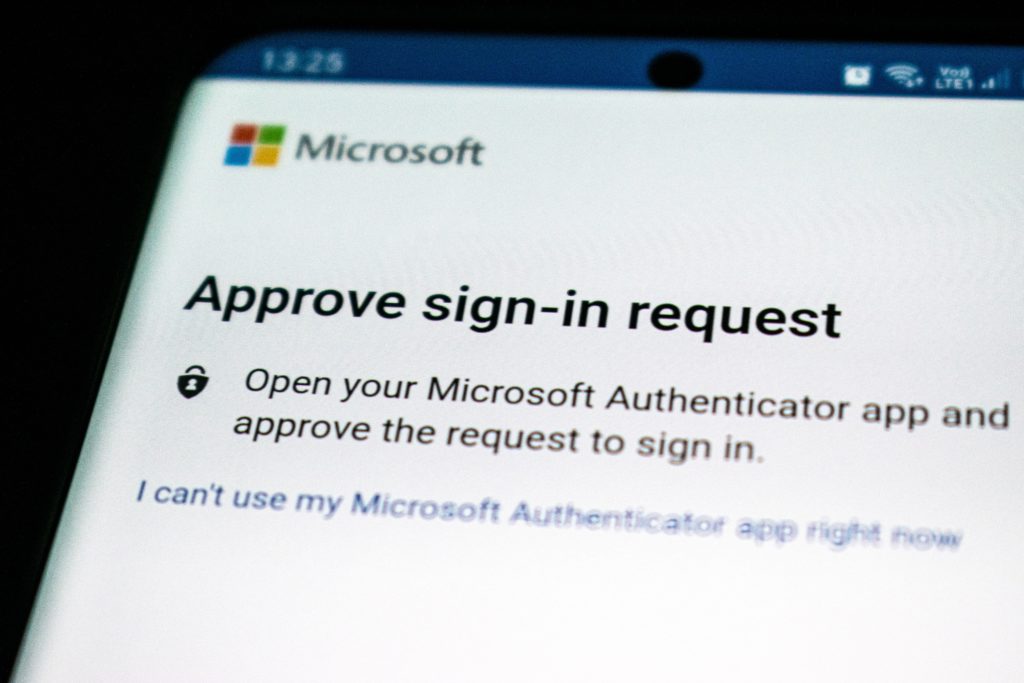
Furthermore, enable two-factor authentication (2FA) to add an extra layer of security to your online accounts. With 2FA, you need to provide an additional verification step, usually a temporary code sent to your mobile device, along with your password. This way, even if someone obtains your password, they would still need access to your physical device to gain entry.

Simple computer security tips - two factor authentication
Photo by Ed Hardie on Unsplash

Exercise Caution with Phishing Attacks

Moreover, remain vigilant and exercise caution with emails, messages, or websites that ask for personal details or prompt you to click on suspicious links. Always verify the authenticity of such requests by directly contacting the organization through a trusted channel. Educate yourself about the signs of phishing attempts to minimize the risk of falling victim to these scams.

Regularly Back up Your Data

Another crucial step is to regularly back up your important files and documents to protect against data loss due to hardware failure or accidental deletion. Utilize external hard drives, cloud storage services, or automated backup solutions to ensure the safety and accessibility of your data, even if your computer fails.

Use Antivirus and Anti-Malware Software

Installing reliable antivirus and anti-malware software is essential. These programs add a vital layer of defense against viruses, Trojans, ransomware, and other malicious software. They detect and remove malware from your computer, safeguarding your data and system integrity. It is important to keep your antivirus software up to date to effectively detect the latest threats.

Practice Safe Web Browsing

Lastly, exercise caution while browsing the internet. Avoid visiting suspicious websites or downloading files from untrusted sources. Pay attention to the permissions you grant to websites, plugins, and extensions. Consider using a reputable ad-blocker and enable the built-in security features of your browser, such as pop-up blockers and phishing protection.

Computer security is crucial for everyone, regardless of technical knowledge. By following these simple computer security tips, such as regularly updating software, using strong passwords, enabling two-factor authentication, being cautious of phishing attempts, backing up your data, installing antivirus software, and practicing safe web browsing, you can significantly reduce the risk of falling victim to cyber threats.

Taking these precautions today will save you from potential headaches and protect your personal information in the future. Stay informed, adapt to the changing threat landscape, and prioritize computer security in your digital life. Visit iFixYouri for any computer or malware-related needs.

How to Pick the Best Accessories for Your Gaming Console

Gaming consoles have become a crucial part of many people’s entertainment experiences, providing immersive gameplay and impressive graphics. However, to further enhance your gaming experience, it is essential to choose the right accessories for your console.

Whether you’re a casual gamer or a devoted enthusiast, incorporating the appropriate accessories can take your gaming sessions to new heights. In this blog post, we’ll explore essential factors to consider when selecting accessories for your gaming console. You may also want to check out our post about How to Upgrade Your Gaming Console.

Controllers

First and foremost, let’s discuss controllers. These devices serve as the primary interface between you and your gaming console. Therefore, it is vital to choose the right one that suits your gaming style and preferences. While most consoles include a standard controller, it is worth exploring additional options. For instance, some controllers offer customizable buttons, extra triggers, or specialized features for specific genres. When selecting a controller, consider factors such as comfort, responsiveness, and button layout that align with your needs.

Accessories for Your Gaming Console: Gaming Headsets

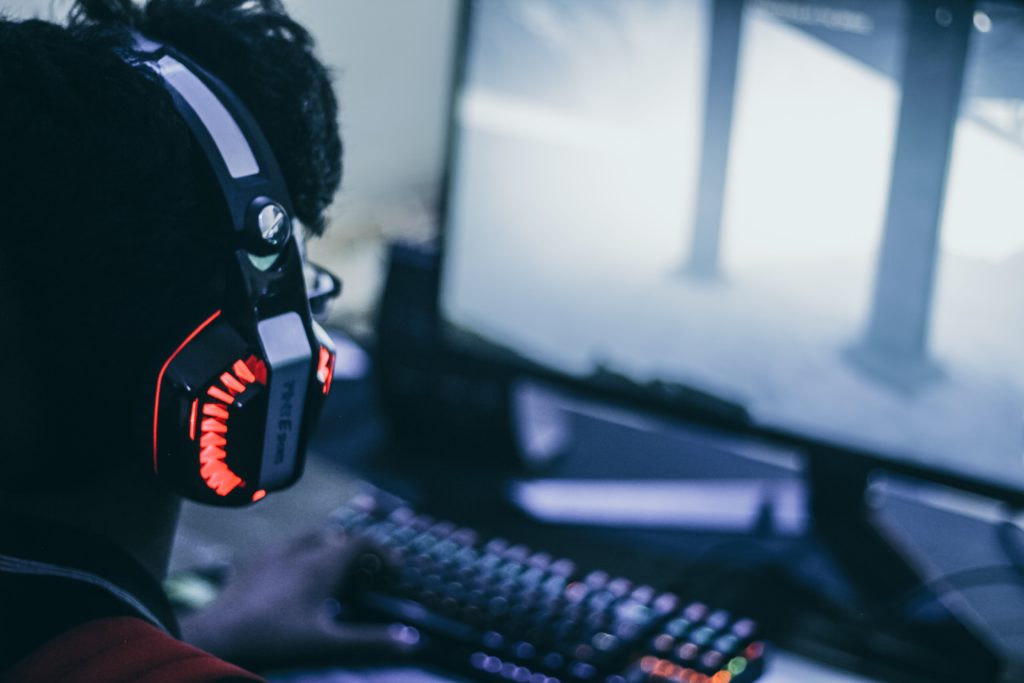
In addition to controllers, gaming headsets play a significant role in enhancing your gaming experience. Not only do they provide superior audio quality, but they also enable seamless communication with other players during multiplayer games.

Look for headsets with comfortable ear cups, noise-cancellation features, and a clear microphone. For those who enjoy competitive gaming, investing in a headset with surround sound capabilities can greatly improve positional audio.

Accessories for Your Gaming Console: Gaming Headsets
Photo by Fredrick Tendong on Unsplash

Gaming Add-Ons: External Storage

As games continue to advance in terms of graphics and complexity, they also require more storage space. If you often find yourself running out of space on your console’s internal hard drive, investing in external storage is a wise decision.

External hard drives or solid-state drives (SSDs) can expand your console’s storage capacity, allowing you to install more games without worrying about running out of space. To ensure faster data transfer speeds, opt for a drive with a USB 3.0 or higher connection.

Charging Solutions

Running out of battery power in the middle of an intense gaming session can be frustrating. To prevent this inconvenience, consider investing in a reliable charging solution for your controllers. Some consoles offer dedicated charging docks, while others have rechargeable batteries built into the controllers themselves.

Alternatively, you can choose from a variety of third-party charging stations or controller grips that provide charging capabilities. By having a dependable charging solution, you can ensure that your controllers are always ready for action.

Gaming Keyboards and Mice

While gaming consoles are typically associated with controllers, certain games are better played with a keyboard and mouse. For example, strategy games or first-person shooters often benefit from a gaming keyboard and mouse combo. Look for keyboards with programmable keys, customizable lighting effects, and mechanical switches for optimal tactile feedback. When selecting a mouse, prioritize models with adjustable DPI settings and comfortable ergonomics to support extended gaming sessions.

Gaming Capture Cards

Lastly, if you’re interested in sharing your gaming experiences or creating content for platforms like YouTube or Twitch, a gaming capture card can be an invaluable accessory. Capture cards allow you to record or stream gameplay footage from your console to your computer, enabling you to edit and share your gaming moments seamlessly. Look for capture cards with high-definition (HD) or 4K support and user-friendly software for recording and streaming purposes.

In conclusion, selecting the right accessories for your gaming console can significantly enhance your gaming experience. Whether it’s improving control responsiveness, immersing yourself in high-quality audio, expanding storage capacity, or customizing your input devices, there are various accessories available to suit your needs.

When making your selection, consider factors such as comfort, performance, and compatibility with your console. By investing in the right accessories, you can unlock new levels of enjoyment and maximize your gaming potential. So, gear up, and get ready to elevate your gaming sessions to the next level! If you need repairs for your gaming console, visit iFixYouri.

Signs of a Failing Hard Drive and How to Respond

We store vast amounts of crucial data on our computers. A failing hard drive can become a nightmare. Hard drives are not infallible and can fail unexpectedly, leading to potential data loss and system instability.

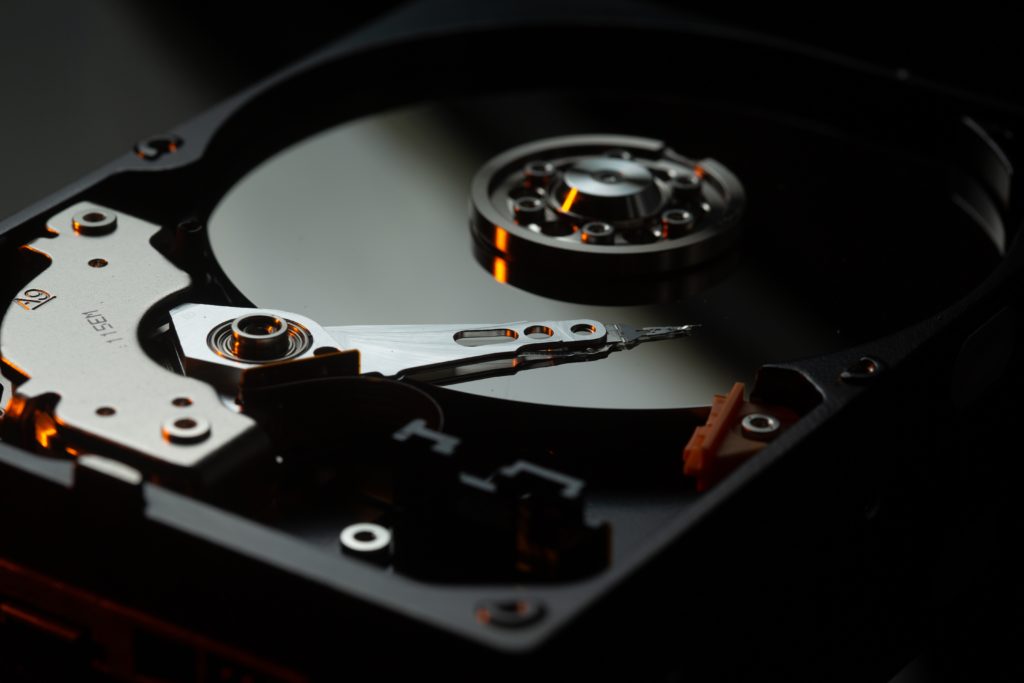
It’s important to recognize the signs of a failing hard drive. We can take the necessary actions to safeguard data (also see The Importance of Data Backup). In this blog post, iFixYouri will explore common signs of a failing hard drive and provide guidance on what you can do in such situations.

Failling Hard Drive - classic internal HDD
Photo by benjamin lehman on Unsplash

Frequent and Unusual Computer Crashes

One of the telltale signs of a failing hard drive is frequent and unexpected computer crashes or system freezes. If your computer crashes frequently while performing routine tasks or during boot-up, it could indicate that your hard drive is struggling to read or write data correctly. Moreover, don’t ignore this warning sign, even though crashes can also result from other factors.

Slow and Sluggish Performance

As a hard drive deteriorates, you may experience significant performance issues on your computer. Applications may take longer to load. Files may require extended time to save. Your overall system responsiveness might suffer. Consequently, a sudden drop in your computer’s performance could be due to an ailing hard drive struggling to access and retrieve data effectively.

Strange Noises

When a hard drive starts failing, it may emit unusual noises. Clicking, grinding, or whirring sounds are common indicators of mechanical issues. Therefore, pay attention to these noises, as they suggest that the drive’s read/write head or other internal components may be malfunctioning. If you hear any unusual sounds, back up your data immediately and seek professional assistance.

File Corruption or Disappearing Data

A failing hard drive can cause files to become corrupted or go missing altogether. Consequently, if your files suddenly become unreadable or if you cannot find files that were previously accessible, it could be a sign of a deteriorating hard drive. Additionally, pay attention to error messages indicating file system corruption. They often point to underlying hard drive issues.

Increasing Number of Bad Sectors

Hard drives are divided into sectors, and over time, some sectors may become damaged or unreadable. An increasing number of bad sectors is a warning sign that your hard drive’s health is deteriorating. As a result, data errors or even complete data loss can occur. To stay proactive, regularly running disk checks or utilizing diagnostic tools can help identify and monitor the presence of bad sectors.

What to Do:

  1. Backup Your Data: Once you suspect a failing hard drive, make it your top priority to back up your important files to an external storage device or a cloud-based backup service. This ensures that you have a copy of your data even if the hard drive fails completely.
  2. Stop Using the Drive: To prevent further damage and increase the chances of data recovery, it is recommended to immediately stop using the failing hard drive. Consequently, continued use may worsen the issue and make data retrieval more challenging.
  3. Seek Professional Help: If you are uncertain about handling a failing hard drive yourself or if the data on the drive is critical, it’s best to consult with a professional data recovery service. These experts possess specialized tools and techniques to salvage data from failing drives.
  4. Replace the Hard Drive: Once you have secured your data, it is advisable to replace the failing hard drive with a new one. Additionally, consider upgrading to a solid-state drive (SSD) for improved performance and reliability.

Recognizing the signs of a failing hard drive is vital to protect your data and avoid potential disasters. By being attentive to frequent crashes, sluggish performance, strange noises, file corruption, and increasing bad sectors. You can take prompt action to mitigate the risks.

Remember to back up your data, cease using the failing drive, seek professional assistance if necessary, and consider replacing it to ensure a reliable and secure computing experience.

Tablet vs. Laptop: How to Choose the Right Device for Your Needs

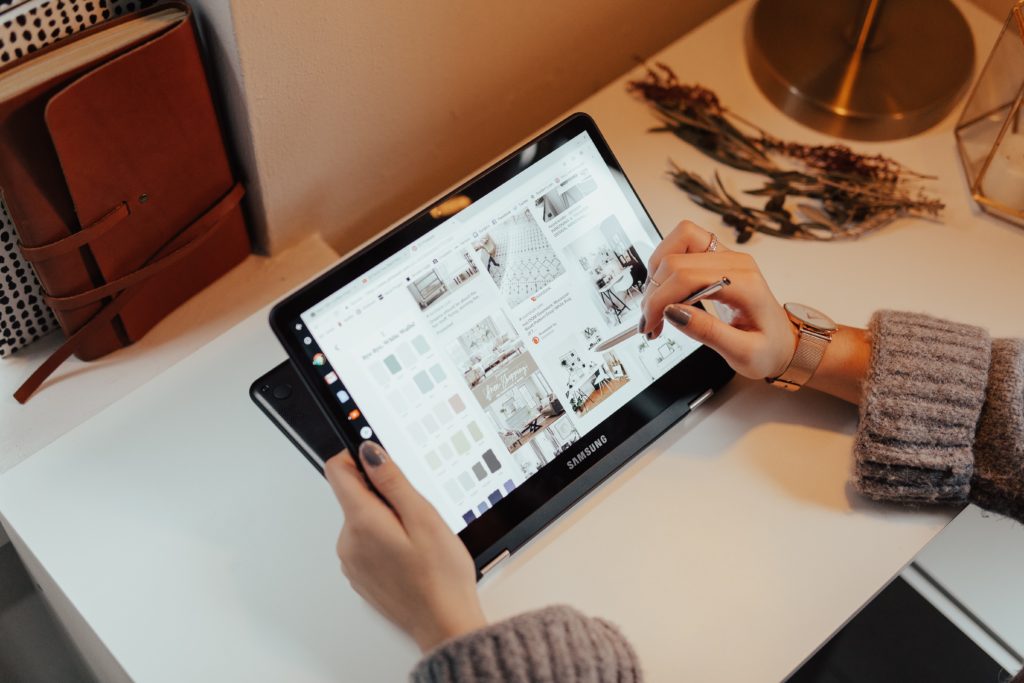
In today’s fast-paced digital world, selecting the appropriate device is essential for staying connected, productive, and entertained. When comparing tablets and laptops, it can be challenging to make a decision. In this blog post, we will delve into the tablet vs. laptop debate and assist you in determining the right device for your needs. You may also want to check out our post about Addressing Common Laptop Issues.

tablet vs. laptop
Photo by Muhammed Abiodun Mustapha on Unsplash

Tablet vs. Laptop – Portability and Form Factor:

One of the primary considerations when choosing between a tablet and a laptop is portability. Tablets, being slim and lightweight, are designed for effortless portability. They offer great convenience for on-the-go use and easily fit into a bag or even a large pocket. Additionally, their touchscreen interface allows for intuitive navigation and enhances the immersive experience, whether consuming media or playing games.

Conversely, laptops are slightly bulkier but offer a more traditional computing experience. With a physical keyboard and trackpad, they are better suited for tasks requiring extensive typing, like document writing or coding. Moreover, laptops tend to have larger screens, making them ideal for tasks that demand a larger workspace, such as video editing or graphic design.

Productivity and Multitasking:

If productivity is your primary concern, laptops generally provide a better platform. Their larger screens, more powerful hardware, and full-fledged operating systems make them well-suited for demanding tasks like content creation, software development, or data analysis. Laptops typically offer a wider range of software options and excel at multitasking. This allows you to run multiple applications simultaneously without sacrificing performance.

While tablets can handle basic productivity tasks such as web browsing, email communication, and document editing, their smaller screens and touch-based interfaces can limit more complex work. However, they excel in portability and offer a range of productivity apps, making them a great choice for light productivity on the go.

Media Consumption and Entertainment:

When it comes to media consumption and entertainment, tablets have the edge. Their compact size, high-resolution displays, and touchscreens provide an immersive experience for reading e-books, watching videos, browsing social media, or playing games. Furthermore, tablets often boast excellent battery life, enabling hours of uninterrupted entertainment.

Although laptops can also handle media consumption, their larger screens and more robust hardware make them better suited for tasks that require higher processing power, such as gaming or video editing. Additionally, laptops usually offer better audio quality and improved connectivity options for external devices like headphones or speakers.

Price and Affordability:

Price is another crucial factor to consider when choosing between a tablet and a laptop. Generally, tablets tend to be more affordable compared to laptops, especially at the entry-level. However, as you move up the price range, the price difference between tablets and laptops narrows. Furthermore, laptops offer more configuration options and can accommodate higher-end components, resulting in higher prices for more powerful models.

Ultimately, selecting between a tablet and a laptop depends on your specific needs and preferences. If portability, touchscreen interaction, and media consumption are your primary concerns, a tablet may be the ideal choice. On the other hand, if productivity, multitasking, and a more traditional computing experience are crucial, a laptop is likely the better option.

Consider your budget, the tasks you need to accomplish, and the level of performance required when deciding between tablet vs. laptop. In some cases, you may find that having both devices can complement each other. You can enjoy the best of both worlds this way. Also, remember that iFixYouri can assist you with any of your computer or technical questions or issues.

Video Game Controller Problems: The Ultimate Gamer’s Guide to Troubleshooting

For avid gamers, encountering video game controller problems can be incredibly frustrating. Whether it’s unresponsive buttons, connectivity problems, or calibration errors, these technical glitches quickly dampen the gaming experience.

However, fear not! In this blog post, we will delve into troubleshooting video game controller problems and provide practical solutions to get you back in the game. You may also want to check out our post about common video game system repairs.

Check the Basics

Before diving into complex troubleshooting steps, it’s important to cover the basics. First and foremost:
a. Power and Connectivity: Confirm that your controller has a sufficient battery or is properly connected to your gaming device. If you’re using wireless controllers, double-check that they are correctly paired. If necessary, re-sync the controller or replace the batteries to resolve any connection issues.
b. Button Malfunctions: Sometimes, button inputs fail due to debris or dust accumulation. Take a moment to gently clean the affected buttons using a microfiber cloth or compressed air. This simple act significantly improves button responsiveness.

Update Firmware and Drivers

To address compatibility issues, decreased performance, and erratic behavior, it’s crucial to update firmware and drivers. Here’s what you can do:

  1. Console Firmware: Ensure that your gaming console’s firmware is up to date. Most modern consoles provide regular system updates that can fix controller-related problems.
  2. Controller Firmware: Check if there are any available firmware updates specifically designed for your controller model. Manufacturers often release updates to enhance performance and address known issues. Visit the manufacturer’s website or use dedicated software to install the latest firmware.
  3. PC Drivers: If you’re using a controller on a PC, make sure you have the correct drivers installed. Visit the manufacturer’s website or use reputable driver update software to ensure your controller is supported and properly recognized by your computer.

Calibration and Sensitivity Settings

To ensure accurate movements and button responses, proper calibration is essential. Follow these steps:

  1. Console Calibration: Gaming consoles usually offer built-in calibration tools. Start by navigating to the settings menu, locate the controller settings, and carefully follow the provided instructions to recalibrate your controller.
  2. PC Calibration: If you’re gaming on a PC, access the control panel or system settings to find the calibration options. Windows provides a game controller calibration wizard that can help you set up your controller accurately.
Video game controller problems
Photo by Javier Martínez on Unsplash

Verify Game Settings

Game-specific control schemes or settings can affect your controller’s behavior. Take these factors into account:

  1. In-Game Options: Check the game’s control settings and ensure they are correctly configured for your controller. Look for options related to input devices, sensitivity, or button mapping.
  2. Game Updates: If you’re experiencing controller issues with a specific game, check for available patches or updates. Developers often release updates to address controller-related problems and improve gameplay.

Test on Another Device

To isolate the issue, try connecting your controller to another compatible device. If the controller functions properly on a different device, it indicates that the problem lies within your original gaming device, and further troubleshooting may be required.

Seek Professional Assistance

If all else fails, and your controller continues to exhibit persistent problems, it may be time to seek professional assistance. iFixYouri has an experienced repair technician staff who have worked on every game console you can think of. Don’t hesitate to have your controller inspected or repaired by the pros. iFixYouri offers free diagnostics on all devices.

Troubleshooting video game controller problems can be a frustrating ordeal. However, if you are armed with the right knowledge and steps, you can overcome these obstacles and get back to enjoying your gaming adventures.

With this guide, and seeking assistance when necessary, you will successfully resolve most controller issues. Remember, patience and persistence are key when troubleshooting, so don’t give up easily. Happy gaming!

The Benefits of Professional Phone Repair

Smartphones have become an integral part of our lives. They serve as our communication hub, a source of information, and a productivity tool. However, smartphones are prone to damage or malfunction. When faced with smartphone issues, many people consider DIY repairs or turning to unauthorized service providers. However, opting for professional phone repair services offers numerous benefits.

In this blog post, iFixYouri explores the advantages of entrusting your smartphone to experienced professionals.

professional phone repair

Expertise and Experience

Professional phone repair technicians possess the necessary expertise and experience to handle a wide range of smartphone issues. Moreover, they have undergone extensive training and are well-versed in the intricacies of various smartphone models, enabling them to diagnose and repair different hardware and software problems. By choosing professional repair services, you can have peace of mind, knowing that capable hands are handling your device.

Quality Professional Phone Repair

One of the significant advantages of professional smartphone repair is the assurance of high-quality repairs. Authorized service centers or reputable repair shops use genuine parts to fix smartphones, ensuring compatibility and reliability. Consequently, these original components, sourced directly from manufacturers, offer superior performance and longevity compared to generic or counterfeit parts commonly found in unauthorized repair shops. As a result, professional repairs effectively restore your smartphone to its optimal functionality.

Time and Cost Efficiency

Contrary to popular belief, professional smartphone repairs can often save you both time and money. While DIY repairs or unauthorized repair services may initially seem cheaper, they can lead to further damage and more extensive repairs in the long run.

On the other hand, professional technicians accurately diagnose the issue and provide an efficient solution, reducing the risk of recurring problems. Furthermore, authorized repair centers often offer warranties on their services, ensuring that you won’t have to bear additional costs if the issue persists.

Data Protection

Smartphones contain a wealth of personal data, including contacts, messages, photos, and sensitive information. Consequently, entrusting your device to a professional repair service guarantees secure handling of your data. Reputable repair centers adhere to strict privacy protocols and take measures to protect your personal information during the repair process. In contrast, DIY repairs or unauthorized services may compromise the security of your data, putting your privacy at risk.

Value Preservation

For many smartphone users, their device represents a significant investment. Professional repairs not only restore functionality but also help preserve the value of your smartphone. Consequently, whether you plan to sell or trade in your device in the future, having a professional repair history adds credibility and increases its resale value. Additionally, authorized repair centers often provide official documentation of the repairs conducted, enhancing the device’s value.

While the allure of DIY repairs or unauthorized service providers may seem tempting, choosing professional smartphone repair offers undeniable benefits. From expertise and experience to quality repairs, data protection, and value preservation, professional technicians provide a comprehensive solution for your smartphone woes.

Therefore, the next time your device requires attention, consider the advantages of professional smartphone repair and make an informed choice that ensures the long-term reliability and functionality of your valuable device.

Hardware Upgrade! How to Identify the Signs Your Computer Needs One

We rely on computers daily for work, entertainment, and staying connected. However, even the most advanced computers show signs of aging over time. If you encounter slow performance, random crashes, or compatibility issues, it may be time to upgrade your computer’s hardware. In this blog post, we will explore five signs you may need a hardware upgrade. You may also want to check out this post about common computer problems.

Hardware Upgrade - How to Increase Computer Performance
Photo by Daniel Eliashevskyi on Unsplash

Slow Performance and Lagging

One common sign that your computer needs a hardware upgrade is a noticeably slow performance. Whether you’re waiting for programs to load or experiencing lags while multitasking, these issues indicate that your computer’s hardware struggles to keep up with the demands of modern software.

Upgrading components such as the processor (CPU), random-access memory (RAM), or solid-state drive (SSD) can breathe new life into your system and significantly improve its speed and responsiveness.

Insufficient Storage Space

Running out of storage space hinders productivity and frustrates users. Do you frequently encounter low disk space warnings or delete files to make room? It’s time for an upgrade.

Consider upgrading your hard drive to a larger capacity or, better yet, switch to a speedy SSD for faster data access and improved overall system performance.

Outdated Graphics Capability

For gamers and graphic designers, a powerful graphics card (GPU) is crucial. Your computer may struggle to run graphics-intensive applications or experience glitches, artifacts, or low frame rates during gaming. This is a clear sign of an outdated GPU.

By upgrading to a newer graphics card, you can enhance your visual experience. Then you can enjoy the latest games, create stunning visuals, and run resource-intensive applications smoothly.

Incompatibility with New Software

Software developers constantly release updates that demand more from our computers. If your hardware is incompatible with the latest software, it’s a sign that a hardware upgrade is necessary.

New operating systems, design software, and video editing tools often have higher system requirements. Aging hardware may struggle to meet those demands. To ensure smooth operation, consider upgrading your CPU, RAM, or GPU. These upgrades will ensure that your computer remains capable of running the latest software.

Frequent System Crashes and Blue Screens of Death (BSOD)

Frequent system crashes or encounters with the dreaded Blue Screen of Death (BSOD) can be frustrating and disruptive. While software conflicts or driver issues can cause these problems, faulty or aging hardware components can also be responsible.

After ruling out software causes, you may find a hardware upgrade is necessary. Faulty RAM, overheating processors, or failing hard drives can contribute to system instability. By upgrading bad components, you can restore stability and reduce crashes and error messages.

Recognizing that your computer requires a hardware upgrade is essential for maintaining speedy performance and productivity. Whether it’s slow performance, low storage, outdated graphics capability, incompatibility with new software, or frequent system crashes, each sign points to the limitations of your computer’s hardware.

By investing in upgrades to components such as the CPU, RAM, GPU, storage, and cooling systems, you can revitalize your computer. As a result, you can enjoy a faster, more reliable computing experience.

Remember to contact professionals or conduct some research before trying hardware upgrades. For instance, iFixYouri offers a full range of computer upgrades and repairs and our technicians would love to help. Doing upgrades properly ensures compatibility and achieves the best results.

Common Computer Issues: How to Troubleshoot

Computers have become an integral part of our lives. We heavily rely on these machines for work and entertainment. However, like any other technology, computers can encounter issues and glitches. But don’t worry! In this blog post, we’ll explore some essential troubleshooting tips to help you resolve common computer issues and restore your system’s smooth operation.

Slow Performance

Many of you may experience sluggish performance, one of the most common computer issues. If your computer takes forever to boot or lags during tasks, follow these steps:

  1. Check for malware: First and foremost, run a thorough scan using reputable antivirus software to detect and remove any malicious programs that might be slowing down your system.
  2. Free up disk space: Over time, your computer’s hard drive can accumulate unnecessary files. To address this, use the built-in disk cleanup tool or third-party software to remove temporary files, cache, and unused applications. We like CCleaner.
  3. Upgrade your hardware: If your computer is older and struggles to handle modern software, consider upgrading its RAM or replacing the hard drive with a solid-state drive (SSD). These upgrades can significantly boost performance. See also our blog post on Hardware Upgrades.

Blue Screen of Death (BSOD)

Common Computer Issues - The Blue Screen of Death
The Blue Screen of Death!

Encountering the infamous Blue Screen of Death can be a nerve-wracking experience. It indicates a severe system error that usually prompts an automatic restart. Take the following steps to tackle this issue:

  1. Note down error codes: When the BSOD occurs, it’s crucial to jot down the error message or stop code displayed on the screen. This information can help identify the root cause of the problem.
  2. Update drivers: Outdated or incompatible drivers can trigger the BSOD. To mitigate this, visit the manufacturer’s website or use driver update software to ensure all your drivers are up to date.
  3. Check hardware connections: Loose cables, faulty RAM, or overheating components can also cause BSOD errors. Therefore, it’s essential to ensure that all hardware components are properly connected and clean any dust buildup.

Internet Connectivity Problems

In today’s interconnected world, a stable internet connection is vital. If you’re facing issues with your internet connectivity, try these troubleshooting tips:

  1. Restart your router/modem: Begin by powering off your router or modem, wait for a minute, and then turn it back on. This simple step can often resolve many connectivity problems.
  2. Check network settings: Ensure that your computer is connected to the correct network and that airplane mode is turned off. Additionally, verify that the Wi-Fi password is correct if you’re connecting wirelessly. An active modem connection with no internet could signal an issue with your internet service provider.
  3. Update network drivers: Outdated or faulty network drivers can lead to connectivity issues. To address this, visit the manufacturer’s website or use driver update software to install the latest drivers for your network adapter.

Unresponsive Applications

Dealing with frozen or unresponsive applications can be frustrating. Follow these steps to address this issue:

  1. Force quit the application: On Windows, press Ctrl+Alt+Delete and open the Task Manager. On macOS, press Command+Option+Esc to open the Force Quit Applications window. Select the unresponsive app and click “Force Quit.”
  2. Clear temporary files: Some applications generate temporary files that can cause performance issues. Use the app’s built-in features or system cleanup tools to clear temporary files.
  3. Reinstall the application: If an application continues to freeze or behave erratically, it may be necessary to uninstall it and then reinstall it. Ensure you download the latest version from the official website.

By implementing these troubleshooting tips, you can often resolve common computer issues without requiring professional assistance. Remember to keep your system up to date with the latest software patches, perform regular backups, and exercise caution when browsing the internet or installing new software.

However, it’s important to note that troubleshooting alone may not solve all computer problems. In some cases, seeking the help of a professional computer repair service may be necessary.

Smartphone, Tablet and Computer Repairs and News