How to Get A Quieter PC: Achieving a Peaceful Computing Experience

Are you fed up with the incessant noise from your PC’s fans and hard drives? Noisy computers can be not just distracting but also extremely irritating when you’re trying to focus or relax. However, you can take several steps to reduce the noise generated by your PC without compromising its performance.

In this guide, we’ll explore practical tips and tricks to help you create a quieter computing environment. The professional repair technicians at iFixYouri can help with any PC upgrades or repairs.

Keep Your PC Clean

Dust and dirt accumulation inside your PC can force fans to work harder, resulting in increased noise. To combat this issue, routinely clean the internals of your PC. Turn off your computer, unplug it, and open the case.

Use compressed air to gently blow away dust and debris from components like the CPU cooler, GPU, and fans. Ensure that the power supply unit (PSU) fan remains clean as well. A clean PC will run cooler and quieter.

Upgrade or Replace Fans

quieter pc - cooling fans
Computer Cooling Fan – Photo by Alexandru-Bogdan Ghita on Unsplash

Fans inside your computer case represent one of the primary sources of noise. If you have outdated or low-quality fans, consider swapping them out for quieter alternatives. Seek fans with higher airflow-to-noise ratios and those designed for silent operation. Renowned brands such as Noctua and Be Quiet! offer excellent options for quieter fans.

Furthermore, contemplate investing in larger fans, which can move the same amount of air at lower RPMs, resulting in reduced noise levels. Remember to check compatibility with your case, as larger fans may not fit all cases.

Enhance Acoustic Dampening

While many cases come equipped with acoustic-dampening materials, you can further reduce noise by adding more. These materials, often composed of foam or rubber, effectively absorb sound vibrations and minimize noise levels. Attach them to the inner panels of your case or around noisy components like hard drives.

Transition to Solid-State Drives (SSDs)

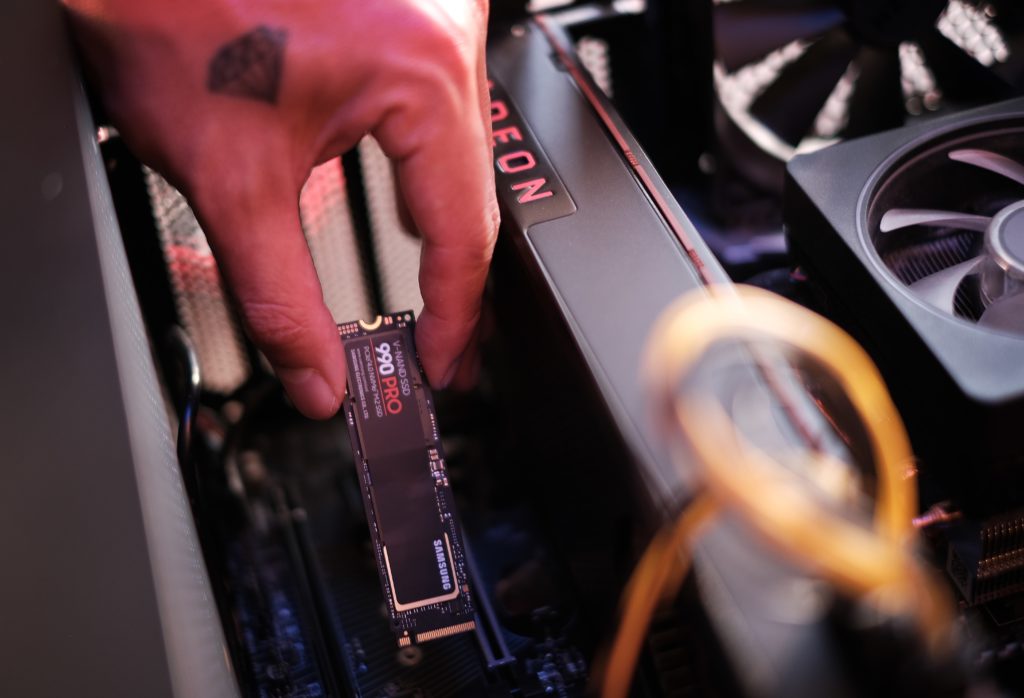
Traditional hard disk drives (HDDs) can generate noise due to their spinning disks and moving parts. Replacing your HDD with an SSD not only boosts your computer’s speed but also eliminates the noise linked to spinning disks. SSDs have become more cost-effective and come in various storage capacities, making them a valuable investment for noise reduction.

Customize Fan Speeds and Profiles

Most modern motherboards include software that empowers you to adjust fan speeds and profiles. By configuring your fans to operate at lower speeds during idle periods and increase speed as needed, you can strike a balance between cooling and noise reduction. Experiment with different settings until you discover the optimal balance for your PC.

Utilize a Quiet CPU Cooler

Stock CPU coolers included with processors can produce noise when subjected to heavy loads. Consider investing in an aftermarket CPU cooler specifically designed for quiet operation. Brands like Noctua and Be Quiet! offer excellent choices that can substantially diminish CPU fan noise.

Mindful PC Placement

The positioning of your PC can also influence its noise level. Avoid placing it on a carpeted floor, as this can obstruct airflow and force fans to work harder. Instead, position your PC on a hard, stable surface with ample room for airflow. Additionally, make certain that the case vents remain unobstructed.

A noisy PC doesn’t have to disrupt your productivity or leisure time. With a few straightforward steps and some thoughtful upgrades, you can significantly reduce the noise generated by your computer.

From cleaning your PC to upgrading fans, and using acoustic-dampening materials, these tips will help you achieve a quieter and more serene computing experience. So, silence those irritating fan noises and embrace a quieter PC! You may also want to check out our post about Simple Computer Tweaks to Enhance Your Speed and Performance.

The Evolution of Operating Systems: Shaping Device Repair

Operating systems (OS) have played a pivotal role in shaping how we repair our technological devices. From the early days of computing to the modern era of smartphones and IoT devices, OSs have not only provided enhanced functionality but have also significantly influenced the way we approach device maintenance and repair.

In this blog post, we will journey through time to explore the evolution of operating systems and examine their profound impact on the world of device repair. You may also want to check out our blog post about Simple Computer Tweaks to

Operating Systems: Apple's iOS
Apple’s iOS. Photo by Rubén Menárguez on Unsplash

The Early Days: Simplicity Leads to Simpler Repairs

During the dawn of computing, simple operating systems like MS-DOS and early versions of Unix were introduced. These systems were relatively straightforward, and device repair primarily involved handling physical components, such as replacing faulty hardware or cleaning dust from internal parts. Repair tasks had minimal software involvement, primarily consisting of basic diagnostics and OS reinstallation.

However, as OSs evolved, repairs became more complex. The introduction of graphical user interfaces (GUIs) in systems like Windows 3.1 and macOS led to increased involvement of software troubleshooting and the resolution of compatibility issues. It was not until the late ’90s and early 2000s that operating systems truly revolutionized device repair.

The Internet Age: Enabling Remote Diagnostics and Online Support

The widespread adoption of the internet brought about a significant change in the landscape of device repair. Operating systems gained the capability to connect to the web, thereby facilitating remote diagnostics and online support. This allowed users to seek assistance from experts, download critical patches and updates, and even receive automated solutions for common issues.

Notable services like Microsoft’s Windows Update and Apple’s Software Update became integral parts of device maintenance. They ensured that operating systems and software remained current with the latest security patches and bug fixes, ultimately reducing the necessity for physical repairs, as many problems could now be resolved remotely or via software updates.

Smartphones and Mobile Operating Systems: A New Era in Repair

The advent of smartphones, powered by mobile operating systems such as iOS and Android, marked a pivotal moment for device repair. These OSs introduced new challenges and opportunities. On one hand, they simplified several aspects of repair by enabling over-the-air updates and remote diagnostics through dedicated apps and cloud services. Conversely, the tightly integrated nature of mobile OSs made certain repairs, such as screen replacements or battery swaps, more intricate and at times limited to authorized service providers.

Nevertheless, these OSs introduced essential features like device encryption and remote wipe, bolstering security and data protection in cases of loss or theft.

IoT and Embedded Operating Systems: Repairing the Unseen

As we entered the era of the Internet of Things (IoT), operating systems started to underpin an array of devices extending beyond traditional computers and smartphones. Devices such as smart thermostats, refrigerators, and wearable tech now operate on embedded operating systems. These diminutive OSs often go unnoticed but wield a profound influence on device repair.

One significant challenge with IoT devices is that many of them lack user-serviceable parts or interfaces, rendering repairs difficult for the average consumer. IoT devices are heavily reliant on software updates to address vulnerabilities and enhance functionality. They frequently necessitate remote fixes or even complete device replacements.

The Future of Device Repair: AI and Automated Solutions

As we gaze toward the future, the role of operating systems in device repair is poised to expand even further with the integration of artificial intelligence (AI). AI-driven diagnostics and repair algorithms will become ubiquitous, enabling devices to autonomously identify and rectify issues or guide users through the repair process.

Moreover, as we advance toward more decentralized and distributed computing models, operating systems will play a pivotal role in seamlessly managing device interactions. This will open up new avenues for remote troubleshooting and repair.

The evolution of operating systems has exerted a profound influence on device repair. From the simplicity of early systems to the complexity of today’s interconnected IoT and AI solutions, OSs have shaped our approach to device maintenance and repair. It is evident that operating systems will continue to occupy a central role in the ever-evolving landscape of device repair, ultimately enhancing convenience and security in our lives.

For any operating system-related problems, please visit iFixYouri for professional help. We can perform full system backups, OS replacements, hard drive upgrades and replacements, and more.

Simple Computer Tweaks to Enhance Your Speed and Performance

In today’s fast-paced digital world, a sluggish computer can be frustrating to use. Whether you’re a student, a professional, or simply using your computer for leisure, a slow and unresponsive machine hinders your productivity and tests your patience. The good news: you don’t always need expensive hardware upgrades to enhance your computer’s speed and performance.

In this blog post, we’ll explore simple computer tweaks and optimizations that can breathe new life into your laptop or desktop, making it faster and more efficient. You may also want to check out our post about Simple Computer Security Tips.

Clean Up Your Hard Drive

Photo by Samsung Memory on Unsplash

One of the most common reasons for a slow computer is a cluttered hard drive. Over time, files accumulate. Temporary data builds up. Your storage becomes fragmented. To address this issue:

  • Begin by uninstalling unused programs: Review your list of installed software and remove any applications you no longer use.
  • Next, delete unnecessary files: Utilize built-in tools or third-party software to clean up temporary files, old downloads, and browser caches.
  • Lastly, defragment your hard drive (for HDDs): This process reorganizes data on your hard drive for faster access.

Manage Startup Programs

When your computer boots up, many programs and services start running in the background. This can slow down your system’s startup time and overall performance. To manage startup programs:

  • First, disable unnecessary startup items. Open your task manager and review the list of programs set to launch at startup. Disable any that you don’t need immediately.
  • Then, employ “msconfig” (Windows) or “System Preferences” (Mac): These tools allow you to configure startup programs more comprehensively.

Keep Your Operating System and Software Updated

Photo by Clint Patterson on Unsplash

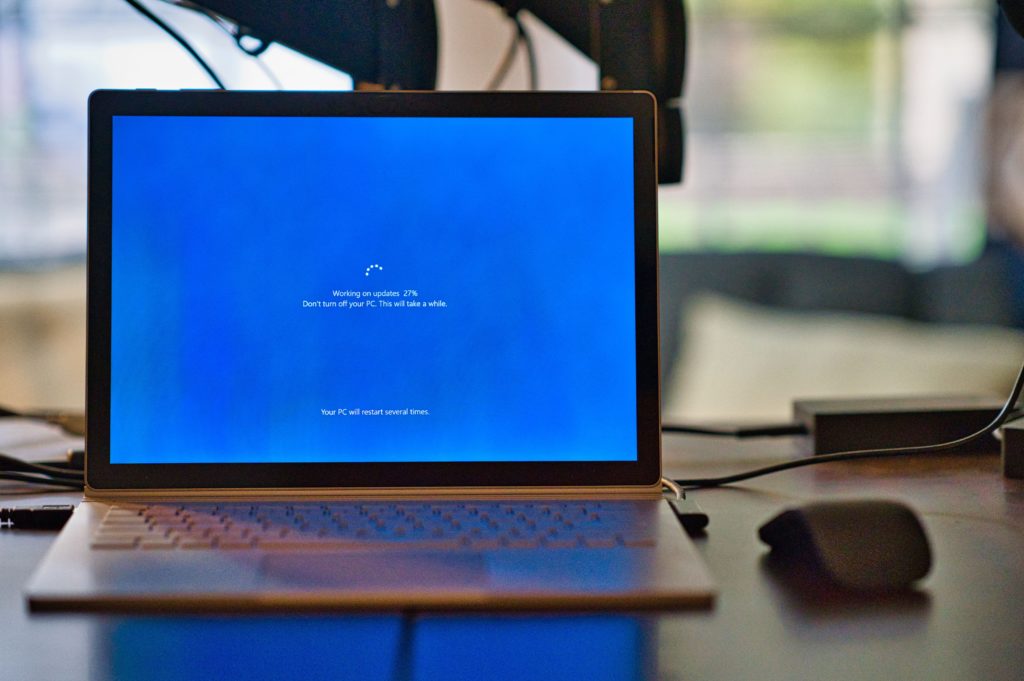
Regularly updating your operating system and software can help fix bugs, improve security, and enhance performance. Enable automatic updates to ensure you’re always running the latest versions.

Optimize Your Web Browser

Your web browser can significantly impact your computer’s speed. Here’s how to optimize it:

  • Start by clearing your browser cache: Periodically delete cached files and cookies to improve browsing speed.
  • Additionally, use browser extensions judiciously: Disable or remove unnecessary browser extensions that can slow down your browser.
  • Consider choosing a lightweight browser: Such as Google Chrome or Mozilla Firefox, known for their speed and efficiency. We find Firefox to be the faster choice. Chrome can use quite a bit of RAM depending on plugins. 

Upgrade Your Hardware (if necessary)

computer tweaks
Photo by Heliberto Arias on Unsplash

Eventually, there will come a time when upgrading your hardware becomes necessary. Some of these may not be simple computer tweaks, especially for laptops, so if you get stuck please bring it to iFixYouri for help. Here are a few hardware upgrades that can boost your computer’s performance:

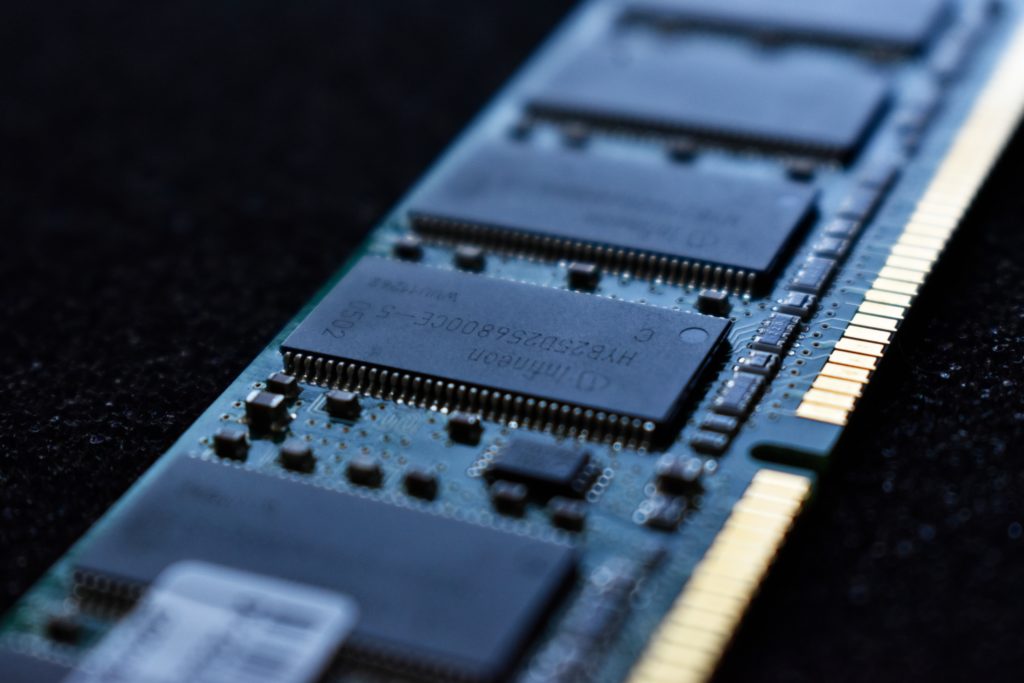
  • Add more RAM: An upgrade to your RAM can improve multitasking and overall system responsiveness.
  • Upgrade to an SSD: Replacing your traditional hard drive with a solid-state drive (SSD) can significantly enhance data access speeds and reduce boot times.
  • Upgrade your graphics card: If you use your computer for gaming or resource-intensive tasks, a better graphics card can improve performance.

Regularly Scan for Malware

Malware and viruses can secretly bog down your computer’s performance. Invest in reputable antivirus software and perform regular scans to detect and remove any threats.

Manage Background Processes

Constantly running background processes can consume system resources. To manage them:

  • Utilize task manager (Windows) or activity monitor (Mac) to identify resource-hungry applications.
  • Close unnecessary applications and processes.

You don’t have to tolerate a slow and frustrating computer. By following these simple computer tweaks, your computer’s speed and performance will boost noticeably. Regular maintenance, careful management of software and startup items, and the occasional hardware upgrade can ensure that your computer runs smoothly and efficiently. This will allow you to work and play without the constant frustration of sluggish performance. Bring your computer to iFixYouri if you get stuck or need assistance with any computer-related issues.

Mac vs PC: Your Ultimate Guide to Choosing

In today’s technology-driven era, the ongoing debate between Mac and PC users remains a hot topic. Enthusiasts on both sides passionately advocate for their chosen platform, often engaging in heated discussions regarding superiority. Nevertheless, before making a decision, it is crucial to consider your lifestyle and repair needs. In this blog post, iFixYouri will delve into the key factors that should influence your choice. You may also want to check out our post iPad vs Android Tablet.

Mac vs PC: The Mac Advantage

Mac vs PC
Photo by Mia Baker on Unsplash

Elegance and Design

Apple is well-known for its commitment to sleek, minimalist design. Macs are renowned for their beautiful aesthetics and premium build quality. If you value a device that not only performs well but also looks stunning on your desk, a Mac might be your best bet.

User-Friendly Experience

Mac operating systems, such as macOS, are highly regarded for their user-friendly interfaces. The seamless integration between hardware and software ensures a smooth user experience. This makes Macs an excellent choice for individuals who prefer a straightforward and intuitive computing experience.

Reliability and Durability

Mac users often praise the reliability and durability of their devices. Apple’s quality control and build materials contribute to a longer lifespan for Macs compared to some PC counterparts. If you seek a computer that can withstand years of use without significant issues, investing in a Mac may be a prudent decision.

Customer Support

Apple is renowned for its exceptional customer support, including the AppleCare program. With AppleCare, you can receive prompt assistance and repairs for your Mac. This often reduces downtime and frustration when issues arise. Those without AppleCare can always visit a trusted repair center like iFixYouri. iFixYouri is part of Apple’s Independent Repair Program.

The PC Advantage

Photo by Vishnu R Nair on Unsplash

Customization Options

PCs offer a wide range of customization options, allowing you to build a system that precisely suits your needs. Whether you’re a gamer, a content creator, or a business professional, you can tailor a PC to meet your exact requirements. This flexibility may not be as easily achievable with a Mac.

Cost Considerations

PCs often come with a more budget-friendly price tag than Macs. If you are mindful of your budget, you will generally find more affordable options among PCs. This makes them a compelling choice for many users.

Reparability and Upgradeability

One significant advantage of PCs lies in their reparability and upgradeability. PC components are often more accessible and replaceable than those in Macs. If you are tech-savvy or merely wish to extend your computer’s life with hardware upgrades, a PC provides more flexibility in this regard.

Software Compatibility

While Macs excel in user-friendly design, some professional software applications are more readily available and optimized for Windows PCs. If you rely on specific software for your work or hobbies, compatibility might be a critical factor in your decision-making process.

Mac vs PC: Repair Needs

Concerning repair needs, both Macs and PCs have their pros and cons.

Macs are known for their reliability and durability, but repairing them can be more expensive, especially without AppleCare. The tightly integrated design of Macs can also complicate DIY repairs. That being said, the repair technicians at iFixYouri are more than capable of repairing your Mac computer. 

PCs, conversely, often feature more accessible internal components, making repairs and upgrades simpler and cost-effective. However, the quality and durability of PC components can vary depending on the manufacturer, underscoring the importance of selecting a reputable brand.

In summary, your choice between Mac vs PC should align with your lifestyle, preferences, and repair needs. If you value elegance, a user-friendly experience, and reliable customer support, a Mac might be your ideal choice. On the other hand, if customization, cost-effectiveness, and hardware flexibility are more important to you, a PC could be the better option.

Ultimately, there’s no one-size-fits-all answer, and the “Mac vs PC” debate will continue to evolve as both platforms improve and adapt to the ever-changing tech landscape. Therefore, carefully evaluate your priorities, consider your specific needs, and make an informed decision that suits your lifestyle and repair preferences.

How to Identify and Resolve Common iPhone Charging Problems

What do you do when your trusty iPhone starts experiencing charging issues? Such problems can be frustrating but fret not – many of them have straightforward solutions you can tackle independently. In this guide, we’ll walk you through identifying and addressing common iPhone charging problems. You may also want to check out our post: The Ultimate Guide to Smartphone Battery Care and Maintenance.

Examine the Charging Cable

Photo by Mika Baumeister on Unsplash

Before delving into more intricate troubleshooting, let’s start with the fundamentals. A malfunctioning charging cable frequently lies behind charging problems. Here’s what to consider:

  1. Physical Damage: Carefully inspect your charging cable for frayed wires, exposed metal, or bent connectors. Any of these issues can disrupt the charging process.
  2. Confirm Authenticity: Ensure that you use only genuine Apple-certified cables and adapters. Knockoff or third-party accessories may not work reliably.
  3. Try a Different Cable: If you suspect that your cable is at fault, test it with another working cable.

Clear Your Charging Port

iPhone charging problems - charger cable
Photo by Andreas Haslinger on Unsplash

Over time, your iPhone’s charging port can accumulate dust, lint, or debris, hindering the connection between the cable and your device. To rectify this:

  1. Turn Off Your iPhone: To prevent damage to the port or your device, ensure that it is powered off.
  2. Use a Soft Brush or Compressed Air: Gently eliminate any visible debris from the charging port, taking care not to damage the pins.
  3. Avoid Metal Objects: Refrain from using metal objects like pins or paper clips to clean the port, as this can lead to damage.

Reboot Your iPhone

Occasionally, software glitches may impede your iPhone’s charging. Restarting your device can help:

  1. Press and hold the power button until the “Slide to power off” slider appears.
  2. Slide the slider to turn off your iPhone.
  3. After it’s off, press and hold the power button again until you see the Apple logo.

Keep iOS Up to Date

Apple regularly releases software updates that may encompass bug fixes and enhancements. An outdated operating system could contribute to charging problems:

  1. Access “Settings.”
  2. Scroll down and tap “General.
  3. Tap “Software Update” to check for and install any available updates

Monitor Background Apps or Processes

Apps running in the background can deplete your battery faster than it charges. To identify and close these apps:

  1. Double-click the Home button (or swipe up from the bottom on newer models) to view your open apps.
  2. Swipe up on each app to close it.

Reset All Settings

If none of the above steps prove effective, consider resetting all settings on your iPhone. This action won’t erase your data but will restore all settings to their default values:

  1. Navigate to “Settings.”
  2. Scroll down and tap “General.
  3. Scroll to the bottom and select “Reset.
  4. Choose “Reset All Settings.

Contact Our Support

If you’ve attempted all the above measures and your iPhone still fails to charge correctly, it may be advisable to reach out to our repair technicians at iFixYouri. There might be an underlying hardware issue that necessitates professional attention.

Confronting iPhone charging problems can be vexing, but in many instances, you can diagnose and address the issue independently by following these troubleshooting steps. 

Always commence with the basics, such as inspecting your cable and cleaning the charging port, before proceeding to more advanced solutions. With a little patience and some know-how, you can keep your iPhone charged and ready for action. Visit iFixYouri for any iPhone charging problems; battery tests are always free.

The Significance of ESD Safety in Device Repairs

From smartphones and laptops to smart home appliances and medical equipment, electronic devices have become an integral part of our daily routines. However, what many people often overlook is the importance of Electrostatic Discharge (ESD) safety when repairing and maintaining these devices.

ESD can have detrimental effects on electronic components, and neglecting proper precautions can result in costly damage. In this blog post, we’ll delve into why ESD safety should be a top priority for both professionals and DIY enthusiasts and explore the consequences of disregarding it. Repair technicians may also want to check out our post about The Future of Computer Repair.

Understanding Electrostatic Discharge (ESD)

ESD is the sudden flow of electricity between two electrically charged objects caused by contact, an electrical short, or the discharge of a charged object. This phenomenon can occur without warning, and it typically happens when there is a difference in electrical potential between two objects. Although you may not feel or see it, ESD can reach thousands of volts and cause damage to sensitive electronic components.

Why ESD is a Concern in Device Repairs

Delicate Electronic Components:

Modern electronic devices contain intricate and delicate components, such as microchips, transistors, capacitors, and resistors. These components are extremely sensitive to ESD. Even a small discharge of static electricity can disrupt their operation, leading to device malfunction or failure.

Hidden Damage:

One of the most insidious aspects of ESD is that it can cause latent or hidden damage. This means that a device may appear to function correctly immediately after an ESD event but fail or become unreliable over time due to the cumulative effects of repeated discharges. This can make troubleshooting and diagnosing issues more challenging and costly.

Costly Repairs and Replacements:

ESD damage often necessitates costly repairs or replacements of damaged components. This not only increases the overall cost of the repair but also extends the downtime of the device, causing inconvenience to the user.

The Importance of ESD Safety in Device Repairs

Protecting Your Investment:

Whether you’re a professional technician or a DIY enthusiast, you’ve likely invested a significant amount of money in your electronic devices. Implementing proper ESD safety measures during repairs ensures that you protect your investment and extend the lifespan of your gadgets.

Maintaining Reliability:

For professionals, maintaining the reliability and performance of repaired devices is crucial to their reputation and business success. ESD safety measures help ensure that devices continue to function as intended, reducing the risk of warranty claims or customer dissatisfaction.

Minimizing Costs:

Taking proactive steps to prevent ESD damage can save you money in the long run. Avoiding the need for costly component replacements and rework due to ESD damage reduces repair expenses and increases your overall profitability.

ESD Safety Best Practices

ESD safety

Now that we’ve established the importance of ESD safety in device repairs, let’s explore some best practices to follow:

  1. Use ESD-safe workstations and equipment, including ESD mats, wrist straps, and conductive containers.
  2. Ground yourself properly using wrist straps or heel straps to discharge any built-up static electricity.
  3. Store sensitive components and devices in ESD-safe packaging when not in use.
  4. Keep your workspace clean and free of materials that generate static electricity, such as plastic bags or foam packaging.
  5. Educate yourself and your team about ESD safety protocols and regularly reinforce their importance.

In the world of electronics, where devices are becoming more complex and sensitive, understanding and implementing ESD safety measures is non-negotiable. Whether you’re repairing your own gadgets or offering professional repair services, neglecting ESD precautions can result in avoidable damage, increased costs, and unhappy customers.

By prioritizing ESD safety in device repairs, you not only protect your investments but also contribute to the longevity and reliability of the electronic devices that have become so integral to our lives. If you do have any issues with an electronic device, please visit iFixYouri – We Can Fix That!

The Ultimate Guide to Taking Professional-Looking Smartphone Photos

In today’s smartphone-dominated era, photography has become an art accessible to all. Armed with just a smartphone, we can effortlessly capture cherished moments. While traditional cameras still hold their allure, technology has evolved and we can now take professional-looking smartphone photos with just a tap.

In this article, we’ll delve into ingenious hacks that can elevate your smartphone photography skills, enabling you to produce images that rival those taken with high-end cameras. Let’s explore these hacks, which will transform your smartphone photos into professional-grade masterpieces. You may also want to check out our post about The Best Android Phones for Photography.

Professional-Looking Smartphone Photos
Photo by Explore with Joshua on Unsplash

Grasp Composition and Framing Techniques

Before delving into advanced techniques, it’s crucial to grasp the basics of composition and framing. Firstly, the rule of thirds is a guiding principle; position your subject at the intersections of these lines or use the grid feature found in most smartphones for precise composition. Additionally, experimenting with angles and perspectives introduces depth and visual allure to your photos.

Harness the Beauty of Natural Lighting

Lighting is the backbone of photography, and this holds true for smartphone photography. Natural light is your greatest ally in capturing captivating images. To avoid harsh midday sunlight, opt for the gentle warmth of the golden hour – the period shortly after sunrise or before sunset. By aligning your subject with the light source, you’ll bathe your photo in exquisite luminance.

Master Focus and Depth of Field

Smartphones empower you to control the focal point, enabling you to achieve a pleasing depth of field. Simply tap on your subject to focus while gently blurring the background, directing attention to the main subject and imparting a professional touch to your photo. This technique works wonders for portraits and close-up shots.

Keep Your Lens Crystal Clear

Maintaining a clean lens might seem obvious, but it significantly affects photo quality. Regularly employ a microfiber cloth to wipe your smartphone’s lens. By keeping your lens clean, you guarantee sharpness and freedom from unintended distortions.

Editing Apps: Your Creative Partners

The plethora of editing apps available is one of smartphone photography’s greatest assets. These apps facilitate color enhancement, exposure adjustment, and creative effects. Renowned choices like Adobe Lightroom, Snapseed, and VSCO offer powerful editing capabilities. However, remember that restraint is key – subtle edits often yield the most impactful results.

HDR and Panorama for Dynamic Scenes

The High Dynamic Range (HDR) mode excels in capturing scenes with stark contrasts between light and shadow. By amalgamating multiple exposures, it crafts a harmonious image. Similarly, the panorama mode is tailor-made for capturing sweeping landscapes or expansive architectural wonders. Remember to maintain a steady pace while moving your phone for optimal results.

Embrace Stabilization Techniques

Blurry images, particularly in low-light conditions, can be frustrating. Combat this challenge by employing various stabilization techniques. You can brace your phone against a stable surface, invest in a smartphone-compatible tripod, or simply adopt the two-handed grip method.

Embrace Modes and Settings Experimentation

Modern smartphones offer an array of modes and settings to enhance your photographic endeavors. Dive into features like Portrait Mode, Night Mode, Pro Mode (for manual adjustments), and even monochrome shooting. Acquiring an understanding of when and how to utilize these modes enhances the diversity and quality of your shots.

The era where an expensive camera was the sole gateway to professional-looking photos is history. Armed with the right techniques and a discerning eye, your smartphone becomes your artistic instrument. By mastering composition, harnessing lighting, experimenting with modes, and making the most of editing apps, you’ll be taking professional-looking smartphone photos in no time.

Remember, practice is key; don’t shy away from experimenting, learning from missteps, and, above all, enjoying the process of capturing extraordinary moments. Your smartphone, when wielded adeptly, holds the power to weave captivating visual tales that resonate with professionalism.

Visit iFixYouri for any smartphone or digital camera issues.

iFixYouri’s Expert Advice: 5 Essential Tips to Recover Your Water-Damaged Smartphone

The seamless integration of smartphones into our lives has made them indispensable tools for communication, entertainment, and productivity. However, a water-damaged smartphone can disrupt this seamless experience. Whether it’s an unexpected rain shower or an inadvertent plunge into a pool, water damage can wreak havoc on your device.

Fortunately, actionable steps can be taken to recover your water-damaged smartphone and prevent enduring harm. In this article, we’ll delve into iFixYouri‘s top 5 proactive tips for reclaiming your water-damaged smartphone.

Water-Damaged Smartphone
Photo by Bannon Morrissy on Unsplash

Swift Action and Powering Down

To effectively recover from water damage, time is of the essence. Retrieving your phone from the water source promptly is essential. Prolonged submersion increases the risk of irreversible harm.
Immediately after retrieving your device, power it down. This action is critical to avert potential short circuits that moisture can trigger when it contacts the electrical components. To avoid exacerbating the damage, resist the temptation to test if your phone still functions.

Eliminate Excess Moisture

Upon powering down your phone, delicately remove external components like the SIM card, memory card, and case. Gently shaking the device assists in expelling excess water from ports, speakers, and crevices. Moreover, employ a soft, lint-free cloth to gently absorb moisture. However, steer clear of utilizing a hairdryer, as the heat generated may inflict further harm on internal elements.

Facilitate Drying and Absorption

The subsequent step involves expediting the drying process. Place your smartphone in a receptacle or bag filled with uncooked rice, silica gel packets, or a designated desiccant product. These materials proficiently absorb moisture from the device over a duration of time. Seal the container or bag, and allow your smartphone to remain within for no less than 24 to 48 hours. While this technique may not yield results in all scenarios, it significantly contributes to moisture eradication.

Avoid Heat Sources

Despite the allure of hastening the drying process using heat, this approach must be resisted. Refrain from utilizing direct heat sources like hairdryers, ovens, or microwaves. Elevated temperatures can inflict damage upon delicate internal components and escalate the predicament. Adhere to the gradual drying techniques previously mentioned.

Water-Damaged Smartphone? Enlist Professional Assistance

Should your smartphone exhibit no signs of improvement following the above steps, it’s prudent to contemplate professional intervention. Specialized repair shops like iFixYouri possess expertise in smartphone repairs, encompassing water damage recovery. Their proficiency, tools, and experience enable them to evaluate the extent of the damage and conduct requisite repairs. Experts frequently salvage devices that may appear irreparable to the layperson.

Water damage to smartphones is undoubtedly distressing, yet swift action and diligent care can potentially reverse the situation. iFixYouri’s top 5 tips for water damage recovery underscore the importance of swift response, powering down the device, eliminating excess moisture, adopting safe drying practices, and enlisting professional aid when warranted. Remember, preventive measures offer the ultimate shield, so contemplate investing in waterproof cases or pouches to forestall potential mishaps in the future.

Smartphone, Tablet and Computer Repairs and News