
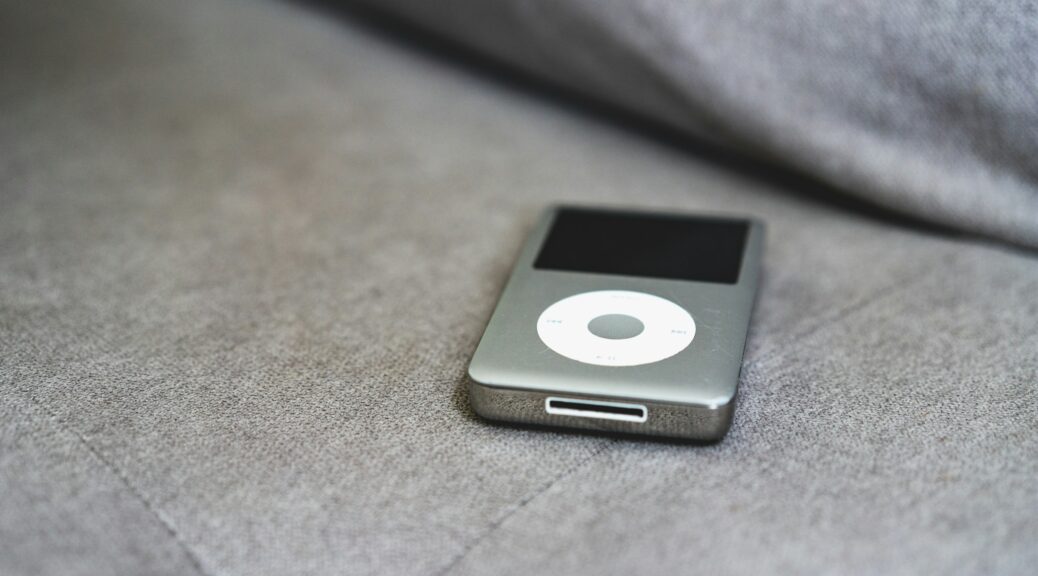
Few things are more frustrating than connecting an old iPod to your computer and getting nothing.
Your iPod may still turn on and play music normally, but the computer doesn’t recognize it. It might not appear in Finder, iTunes, Apple Devices, File Explorer, or anywhere else. You may even hear the computer make the familiar USB connection sound, only to find that the iPod is nowhere to be found.
So, why is your iPod not recognized by your computer?
The problem could be something simple, such as a bad cable, USB port, or software issue. However, older iPods can also develop hardware problems involving the charging port, battery, storage drive, or internal connections.
The good news is that a computer failing to recognize an iPod does not automatically mean the iPod is dead.
In this guide, we’ll explain the most common causes, what you can safely try at home, and when it’s time to have your iPod professionally diagnosed.
Why Is My iPod Not Recognized by My Computer?
An iPod needs to establish a working USB connection before your computer can communicate with it.
That means several things have to work together:
- The iPod needs sufficient power.
- The USB cable needs to make a reliable connection.
- The computer’s USB port needs to work.
- The iPod’s charging/data port needs to function.
- The computer needs compatible software to communicate with the device.
- The iPod itself needs to be operating properly.
If any one of those pieces fails, your computer may not recognize the iPod.
For example, an iPod Classic might still play music perfectly but fail to appear on a computer because its dock connector has developed a bad connection. Likewise, an aging battery may allow the iPod to operate briefly but prevent it from maintaining a stable connection over USB.
Apple’s current support documentation confirms that connected Apple devices should appear in Finder on newer Macs or in the Apple Devices app on Windows PCs.
What Should You Check First?
Before assuming your iPod needs repair, start with the simplest possibilities.
1. Try a different USB cable
A USB cable can fail even when it looks perfectly fine.
Some cables may also charge a device but fail to transfer data. That distinction matters because your iPod needs a functioning data connection for the computer to communicate with it.
Try another known-good cable that is appropriate for your iPod.
Real-world example: Your iPod may show a charging symbol when connected but never appear on the computer. That can point toward a cable or data-connection problem rather than a completely dead iPod.
2. Try another USB port
Connect the iPod directly to another USB port on your computer.
Avoid USB hubs, docks, and adapters during troubleshooting when possible. A direct connection removes another potential source of failure.
Windows normally detects and installs connected hardware automatically, although devices that aren’t detected may require additional troubleshooting.
Real-world example: An iPod that isn’t detected through a USB hub may immediately appear when connected directly to a USB port on the computer.
3. Restart both devices
It sounds simple, but restarting can eliminate temporary software or connection problems.
Disconnect the iPod, restart your computer, then reconnect the iPod after the computer has fully started.
This is particularly worthwhile if the iPod worked with the computer previously.
4. Make sure the iPod has enough power
An old iPod with a weak battery may behave unpredictably when connected to a computer.
Give the iPod time to charge before troubleshooting further.
If the iPod only stays on while connected to power, shuts down unexpectedly, or shows dramatically reduced battery life, the battery may be part of the problem.
That is especially common with older iPods because rechargeable batteries naturally lose capacity as they age.
Is the iPod Actually Working?
Before focusing on the computer, look at the iPod itself.
Ask:
- Does the screen turn on?
- Can you navigate the menus?
- Does the Click Wheel respond?
- Can you play music?
- Does the iPod show a charging indicator?
- Does it restart or freeze?
- Does it repeatedly show the Apple logo?
- Does it shut off shortly after being unplugged?
These clues can help determine whether you’re dealing with a computer connection problem or an iPod hardware problem.
For example, an iPod that works normally when disconnected but won’t appear on a computer points toward the connection, software, or data-transfer side of the problem.
An iPod that freezes, repeatedly restarts, or shuts down may have a deeper hardware or storage problem.
Could Restarting the iPod Fix the Problem?
Yes.
If the iPod has frozen or is behaving strangely, a force restart is worth trying before considering repair.
For an iPod Classic, Apple recommends moving the Hold switch to the unlocked position and then holding the Menu and Center/Select buttons for about eight seconds, or until the Apple logo appears.
The procedure varies by iPod model.
For example:
- iPod Classic: Hold Menu + Center/Select.
- Older iPod nano models: Hold Menu + Center/Select.
- iPod nano 6th generation: Hold Sleep/Wake + Volume Down.
- iPod touch: The button combination depends on the generation.
Apple provides model-specific force-restart instructions for iPod Classic, nano, shuffle, and iPod touch.
Real-world example: If an iPod Classic is frozen on a menu screen, a force restart may bring it back to normal operation. Afterward, reconnect it to the computer and see whether it appears.
Is Your Computer’s Software the Problem?
Sometimes the iPod is fine and the computer simply isn’t communicating with it correctly.
The software you use depends on your computer and iPod.
For older iPod Classic, nano, and shuffle models on Windows, Apple documents iTunes as the software used to sync those devices.
On newer Macs, connected Apple devices are generally accessed through Finder. On Windows, Apple’s Apple Devices app is used for supported connected Apple devices, while iTunes remains relevant for certain older iPod workflows.
What if the iPod appears in Windows Device Manager?
If Windows detects something but doesn’t properly identify or communicate with it, the problem may involve drivers or device configuration.
Windows Device Manager can display error codes when hardware isn’t functioning correctly. Microsoft notes, for example, that Code 10 indicates that a device cannot start and may require driver troubleshooting.
However, don’t immediately assume a driver is the problem.
If the same iPod fails to connect to multiple computers using known-good cables, the evidence starts pointing more strongly toward the iPod itself.
Could the iPod Charging Port Be Damaged?
Absolutely.
The connector on an older iPod experiences years of plugging and unplugging. Over time, the port can become dirty, worn, loose, corroded, or physically damaged.
That’s important because the connector may have to perform two jobs:
- Provide power.
- Transfer data.
A damaged connector can sometimes allow charging while preventing reliable data communication.
What does a damaged port look like?
You might notice:
- The cable feels loose.
- The iPod only connects when the cable is held at a certain angle.
- Charging starts and stops.
- The computer repeatedly connects and disconnects the iPod.
- The iPod charges but isn’t recognized.
- The connector looks bent or damaged.
- The iPod stopped connecting after being dropped.
Real-world example: If your iPod connects for a second and then disappears every time you move the cable, don’t keep forcing the connector. A worn or damaged port may require professional repair.
Could Dirt or Debris Prevent the Connection?
Yes.
Pocket lint and debris can accumulate inside small electronic connectors.
However, be careful when attempting to clean an old iPod.
Apple recommends using a soft, slightly damp, lint-free cloth on iPod models and specifically warns against getting moisture into openings or using compressed air and abrasive or solvent-based cleaners.
If the port appears packed with debris or you suspect corrosion, professional cleaning may be safer than poking around inside the connector.
Could the iPod’s Battery Cause the Problem?
An aging battery can contribute to connection problems.
Older iPods have batteries that may have been charged hundreds of times over many years. As the battery ages, its ability to hold and deliver power decreases.
A weak battery may cause:
- Unexpected shutdowns
- Very short battery life
- Difficulty powering on
- Restarting
- Problems staying connected
- Failure to operate unless connected to power
A battery problem doesn’t necessarily mean the iPod itself is beyond repair.
In fact, battery replacement is one of the most common ways to extend the useful life of an older iPod.
Real-world example: An iPod Classic that immediately shuts off when disconnected from the computer may simply have a severely degraded battery rather than a failed logic board.
Could the iPod’s Storage Drive Be Failing?
For some older iPod Classic models, the internal storage is another potential source of trouble.
Traditional hard-drive-based iPods contain mechanical storage. After many years of use, those drives can eventually develop problems.
A failing storage drive may cause symptoms such as:
- Freezing
- Slow startup
- Repeated restarts
- Missing music
- Error messages
- Clicking or unusual sounds
- Failure to complete a sync
- Failure to appear correctly to the computer
This situation is more serious than a bad cable.
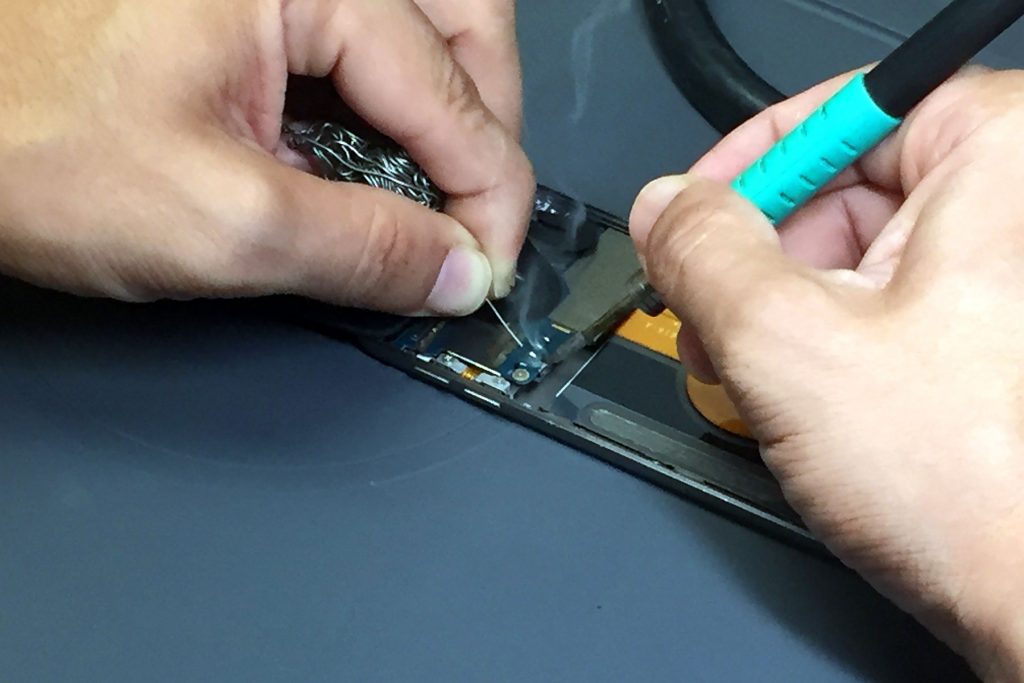
If your iPod contains irreplaceable music or recordings, avoid repeatedly restoring or formatting it before investigating the problem. A repair technician may be able to diagnose the hardware without immediately destroying potentially recoverable information.
What If My iPod Is Recognized But Doesn’t Show My Music?
That’s a slightly different problem.
If the computer recognizes the iPod but your music isn’t visible, the physical USB connection may be working.
At that point, the issue could involve:
- Sync settings
- iTunes configuration
- Disk-use settings
- File-system problems
- Corrupted data
- Storage failure
Apple’s iTunes documentation explains that supported iPod Classic, nano, and shuffle models can be configured for disk use, although music, videos, and games synced through iTunes aren’t necessarily visible like ordinary files.
Real-world example: Your computer may recognize the iPod’s hardware while still failing to display your music library normally. That doesn’t necessarily mean the connector is bad.
Should You Restore the iPod?
Be careful.
A restore can resolve certain software or file-system problems, but it can also erase data.
If your primary goal is to recover music, recordings, photos, or other files from an old iPod, don’t rush to restore it simply because the computer offers that option.
First determine whether the data is backed up elsewhere.
If the iPod contains sentimental or irreplaceable content, professional diagnosis is often the safer next step.
When Should You Stop Troubleshooting?
At-home troubleshooting makes sense when the problem could reasonably be a cable, USB port, software issue, or temporary freeze.
Professional repair becomes more appropriate when you’ve eliminated those possibilities.
Consider professional help if:
- The iPod isn’t recognized by multiple computers.
- Multiple known-good cables produce the same result.
- The iPod won’t stay powered on.
- The battery is swollen or severely degraded.
- The charging port is loose or damaged.
- The iPod has suffered liquid damage.
- The iPod freezes or constantly restarts.
- The iPod makes unusual hard-drive noises.
- The computer repeatedly connects and disconnects it.
- Your iPod contains important or sentimental data.
- You don’t want to risk damaging the device while opening it yourself.
Why does professional diagnosis matter?
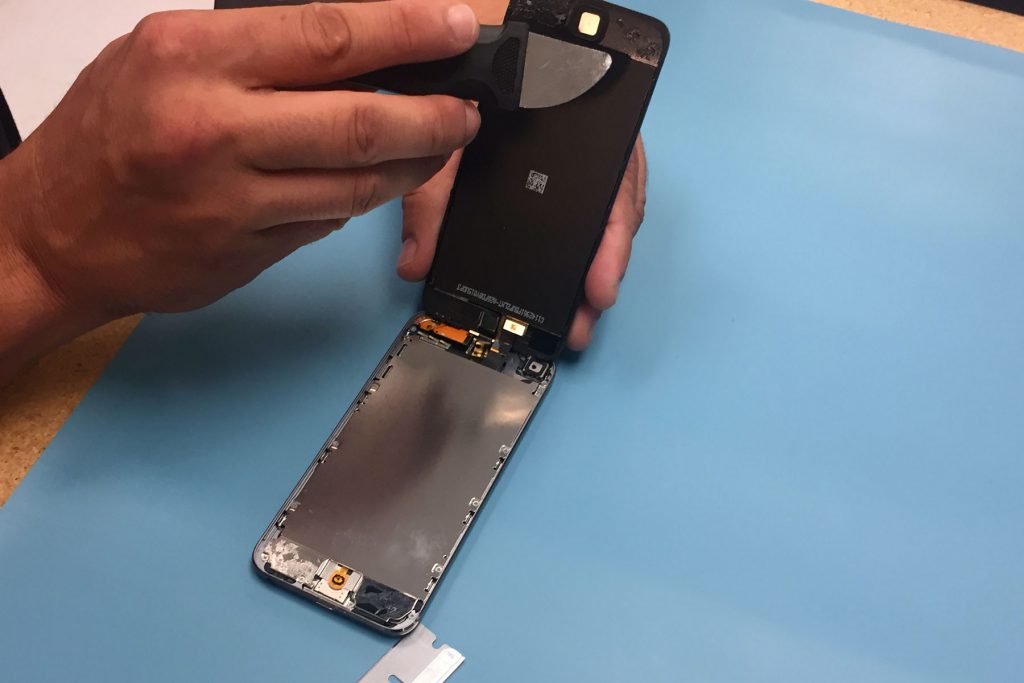
Older iPods are compact devices with components that can be difficult to access without the appropriate tools and experience.
Opening an iPod can also create additional problems if you don’t know how the particular model is constructed.
For example, replacing a battery in an older iPod isn’t always as simple as removing a back cover and unplugging a battery. Depending on the model, accessing internal components can require careful disassembly.
That’s where an experienced repair shop can save you time and potentially prevent additional damage.
Can an iPod That Isn’t Recognized by a Computer Still Be Repaired?
In many cases, yes.
The fact that Apple no longer manufactures iPods doesn’t mean every malfunctioning iPod belongs in a drawer.
iFixYouri currently supports repairs across numerous iPod generations, including iPod Classic, iPod nano, iPod mini, and iPod touch models. Available repairs include battery replacement, Click Wheel repair, charging-port repair, headphone-jack repair, LCD repair, glass repair, button repair, and water-damage service.
Apple announced that it had already sold 100 million iPods by April 2007, illustrating just how many of these devices became part of people’s music collections.
That history is one reason older iPods still have value to their owners today.
Real-world example: Someone may have an iPod Classic containing a carefully built music collection from the 2000s. Buying another used iPod doesn’t necessarily replace that personal history. Repairing the original device may make much more sense.
What Should You Do If Your iPod Still Isn’t Recognized?
Work through the problem methodically rather than immediately assuming the worst.
Try these steps in order:
- Charge the iPod.
- Restart the iPod.
- Restart the computer.
- Try a different USB cable.
- Try another USB port.
- Connect directly to the computer rather than through a hub.
- Check whether the iPod appears in the appropriate Apple software.
- Check Windows Device Manager if you’re using a PC.
- Try another computer if available.
- Stop before restoring the iPod if you need to protect important data.
If the iPod still isn’t recognized after these steps, hardware becomes a much stronger possibility.
Don’t Give Up on Your Old iPod Yet
An iPod that isn’t recognized by a computer can have a surprisingly simple explanation.
Sometimes it’s the cable. Sometimes it’s the USB port. Sometimes a restart fixes everything.
But when an older iPod consistently fails to connect—especially after you’ve tested multiple cables and computers—the problem may involve the battery, charging port, storage, or another internal component.
That’s when professional diagnosis can make sense.
And if your iPod contains music, recordings, photos, or memories you can’t replace, don’t assume that a failed connection means you’ve lost everything.
Need iPod Repair?
iFixYouri has been repairing iPods since 2010 and offers repair services for numerous generations of iPod Classic, nano, mini, and touch. The company provides walk-in and mail-in repair options, with diagnostics performed as part of its repair process.
If your iPod is not recognized by your computer, the iFixYouri team can help determine whether you’re dealing with a cable or connection problem, battery issue, charging-port failure, or another hardware fault.
If you’re in South Florida, iFixYouri also offers local repair service in Palm Beach Gardens and Jupiter, with mail-in options available for customers outside the area.
Before replacing a beloved old iPod, it’s worth finding out whether it can be repaired.
Sources
Locate and view your iPhone, iPad, or iPod on your computer (https://support.apple.com/en-us/108392)
Find out how to force restart your iPod (https://support.apple.com/en-in/102293)
Set up iPod as a hard disk in iTunes on PC (https://support.apple.com/en-gb/guide/itunes/itns3114/windows)
Sync app info from your PC to devices with iTunes (https://support.apple.com/en-au/guide/itunes/itns3278/windows)
How to clean your Apple products (https://support.apple.com/en-us/103258)
Add a hardware device to a Windows device (https://support.microsoft.com/en-us/windows/hardware/add-a-hardware-device-to-a-windows-device)
Error codes in Device Manager in Windows (https://support.microsoft.com/en-us/windows/hardware/drivers/error-codes-in-device-manager-in-windows)
100 Million iPods Sold (https://www.apple.com/newsroom/2007/04/09100-Million-iPods-Sold/)
iPod Repair Services (https://www.ifixyouri.com/pages/ipod-repair)
Can an iPod Be Repaired? Everything You Need to Know (https://blog.ifixyouri.com/can-an-ipod-be-repaired/)
Why Your iPod Click Wheel Isn’t Working (https://blog.ifixyouri.com/)